Windows voice typing is the free dictation built into Windows. Press Windows key + H in any text box, talk, and your words appear. It works in Word, Outlook, your browser, chat apps and most other places you can type.
This guide walks through how to start it, every setting, languages, the commands worth learning, and Fluid dictation on Copilot+ PCs. Everything here comes from Microsoft's voice typing support page, checked in October 2026. If it isn't working for you, jump to our Windows voice typing not working fixes.
What you need#
- Windows 11 (Windows 10 has an older version called dictation; more on that below).
- An internet connection. Microsoft says voice typing "uses online speech recognition, which is powered by Azure Speech services."
- A working microphone, allowed under Start > Settings > Privacy & security > Microphone.
- Your cursor in a text box.
How to start and stop voice typing#
- Click where you want the text to go.
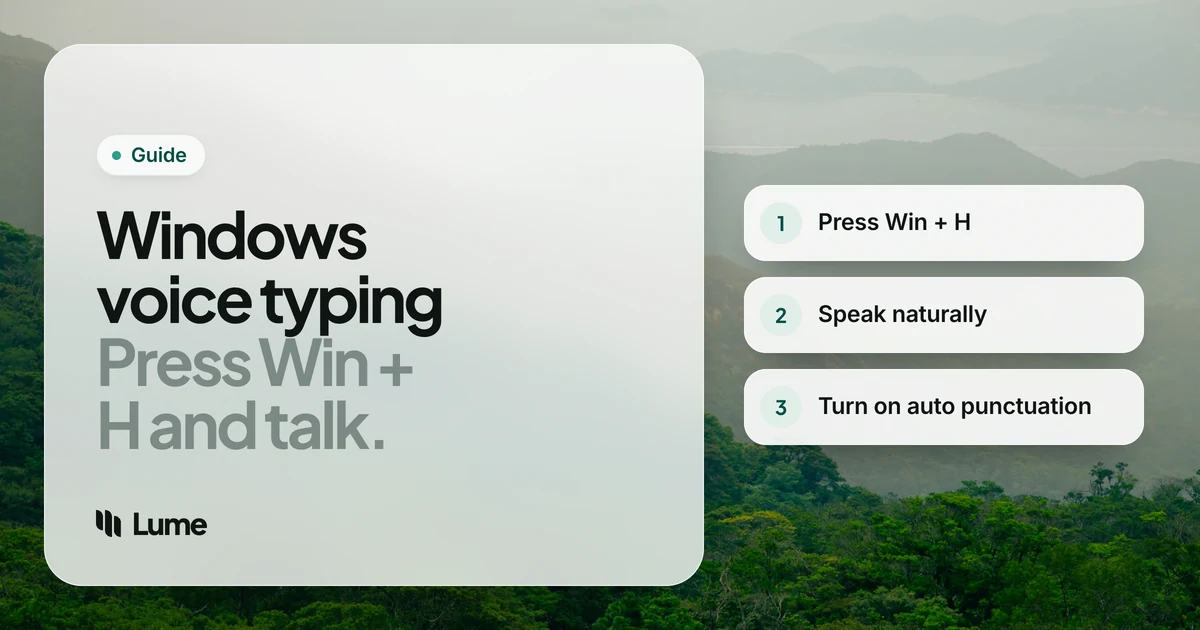
- Press Windows key + H. On a touchscreen, tap the microphone button on the touch keyboard.
- Wait for the "Listening..." alert, then speak.
- To stop, say "Stop listening" or click the microphone button in the voice typing menu.
Voice typing starts listening on its own when it opens, so there's no extra click. If you use a keyboard to move around, Windows key + Alt + H lets you navigate the voice typing menu.
Voice typing settings#
Open the voice typing menu with Win + H and select the gear icon. Microsoft lists these options:
- Voice typing launcher. Puts a small microphone next to text boxes so you can start voice typing with a click. Handy if you forget the shortcut or use a pen.
- Automatic punctuation. Adds periods, commas and question marks as you talk, so you don't have to say them. Most people want this on.
- Filter profanity. Masks swear words with asterisks.
- Default microphone. Chooses which mic voice typing uses. Check this first if you have a headset, webcam and laptop mic all plugged in.
- Wait time before acting. How long voice typing waits before it runs a voice command.
- Fluid dictation (Copilot+ PCs only; see below).
Languages#
Windows 11 voice typing supports dozens of languages and regional variants, including several flavors of English (US, UK, Canada, Australia, India, New Zealand), German, Japanese and Spanish (Spain and Mexico). Microsoft's page has the full list.
To dictate in another language:
- Install it: Start > Settings > Time & language > Language & region, then under Preferred languages, select Add a language and follow the prompts.
- Switch to it: press Windows key + Spacebar, use the language switcher on the taskbar, or use the switcher on the touch keyboard.
Voice typing follows your current input language, so switching keyboards switches the dictation language too.
Commands worth learning#
You don't need to memorize many. These cover most of daily use (English examples from Microsoft's list):
| Say | What happens |
|---|---|
| "period" or "full stop", "comma", "question mark", "exclamation mark" | Inserts the punctuation |
| "new line" / "new paragraph" | Line or paragraph break |
| "delete that" | Deletes the last thing you said |
| "select that" | Selects the last thing you said |
| "undo that" | Undoes the last change |
| "press enter", "press backspace", "press tab" | Presses that key |
| "stop listening" | Stops voice typing |
Swipe to see all columns
With automatic punctuation on, you can skip most punctuation commands. Microsoft's page has full command lists for each supported language.
Fluid dictation on Copilot+ PCs#
On a Copilot+ PC, voice typing gains Fluid dictation. Microsoft says it "automatically corrects grammar, punctuation, and filler words as you speak," using small language models that run on the device. Key details:
- English only: "available in all English locales."
- On by default. You can turn it off in the voice typing settings (gear icon).
- Downloads first. The model downloads in the background after setup. Until it's ready, the option is greyed out. You can check progress under Settings > Windows Update, where the Phi Silica model is listed.
- Undo a correction by saying "revert" or "undo that", or pressing Ctrl + Z.
- Off in secure fields such as passwords and PINs.
If you have a Copilot+ PC and write in English, this is the biggest upgrade to built-in dictation in years. Turn it on before you look at anything else.
Windows 10: dictation, not voice typing#
Windows 10 has the earlier version, called dictation. It also starts with Windows key + H and also needs internet, but its commands differ ("stop dictation" rather than "stop listening"), and Microsoft says dictation commands are only available in US English; other languages get basic dictation. Microsoft ended support for Windows 10 on October 14, 2025, so if you dictate a lot, it's another reason to move to Windows 11.
Voice typing, voice access or Dictate?#
Windows has more than one voice tool, and the names blur together:
- Voice typing (Win + H) writes text wherever your cursor is. It's the one this guide covers.
- Voice access (Windows 11) controls the whole PC by voice: open apps, click, scroll and write. Microsoft built it to replace Windows Speech Recognition, and Microsoft says it can work without an internet connection. It's aimed at people who need hands-free control, so it has many more commands.
- Dictate in Microsoft 365 is a button inside Word, Outlook and PowerPoint, with its own voice commands for formatting. It only works in those apps.
If you just want to talk instead of type, voice typing is the right starting point. If you need to run the computer without a keyboard or mouse, look at voice access.
Tips for better results#
- Use a headset or a decent USB mic. Laptop microphones pick up fans and keyboards.
- Talk in full sentences, at a normal pace. Voice typing does better with context than with single words.
- Use the launcher if you keep forgetting Win + H.
- Fix as you go with "delete that" rather than reaching for the mouse.
Where Windows voice typing falls short#
Voice typing is free and good enough for many people. Its limits:
- It types what you say, mostly verbatim (unless you have Fluid dictation). Ums, restarts and "no wait, I mean" end up in the text.
- No custom vocabulary. Names, product terms and acronyms get misheard, and there's nowhere to teach it.
- Internet required, like most cloud dictation.
- It's Windows only. Your phone needs a different tool with different habits.
If you used Windows Speech Recognition to control your PC by voice, that's a different job: Microsoft has deprecated it in favor of voice access. See our Windows Speech Recognition alternatives.
When to try a dictation app instead#
Try Fluid dictation first if your PC has it. If you don't have a Copilot+ PC, or you write in another language, or you need names and jargon spelled right, a dictation app can help.
LumeVoice is one option for Windows 10 and 11. It lives in the system tray: hold Ctrl + Win, talk, let go, and clean text lands in whatever app you're in. It removes filler words, applies your corrections ("send it Monday, actually Tuesday" becomes "Send it Tuesday"), adds punctuation from context and turns spoken lists into bullets. Your custom dictionary feeds names and acronyms to speech recognition, and it handles 100 languages with automatic detection. Tap Space while holding the shortcut to go hands-free; Esc cancels. It needs an internet connection, it doesn't control your PC by voice, and it installs per user without admin rights. More on the Windows app page.
Hold Ctrl + Win and talk
LumeVoice turns your speech into clean, punctuated text in any Windows app, with Mac, iPhone and Android on the same plan. Every new account gets 3,000 free words, no card required.
Quick reference#
- Start: Windows key + H, or the touch keyboard microphone
- Stop: "stop listening", or click the microphone
- Settings: gear icon in the voice typing menu
- Add a language: Settings > Time & language > Language & region
- Switch language: Windows key + Spacebar
- Mic permission: Settings > Privacy & security > Microphone
- Needs: internet, a microphone, a text box