You press Windows key + H and nothing opens. Or the voice typing bar appears, says it's listening, and types nothing. Or it types, but in the wrong language.
When Windows voice typing is not working, it's nearly always one of three basics Microsoft lists on its voice typing page: an internet connection, a working microphone, and the cursor in a text box. Here are ten fixes in order of how often they're the cause, with Microsoft's own settings paths as of October 2026.
New to voice typing? Our Windows voice typing guide covers how it's meant to work.
Quick diagnosis#
Match what you see to the likely fix, then read that step below.
| What happens | Most likely cause | Go to |
|---|---|---|
| Win + H does nothing | Cursor not in a text box | Fix 1 |
| Bar opens, first words missing | Speaking before "Listening..." | Fix 2 |
| Bar listens, never types | No internet, VPN or firewall | Fix 3 |
| Microphone greyed out or silent | Privacy settings block the mic | Fix 4 |
| Works with one mic, not another | Wrong default microphone | Fix 5 |
| Level meter never moves | Hardware, mute switch or driver | Fix 6 |
| Gibberish or wrong words | Wrong input language | Fix 7 |
| "Delete that" gets typed out | Command language mismatch | Fix 8 |
| Fluid dictation greyed out | Model still downloading | Fix 9 |
Swipe to see all columns
The fixes, most likely first#
1. Click into a text box before pressing Win + H#
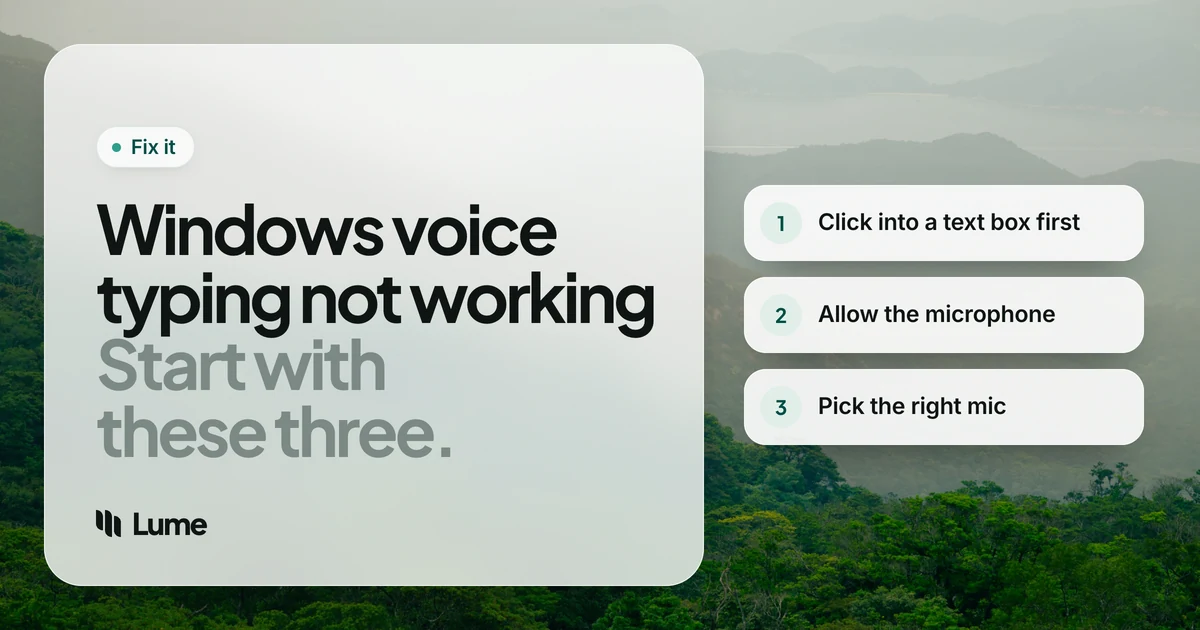
Voice typing needs somewhere to type. If focus is on the desktop, a toolbar or a window that doesn't accept text, Win + H may do nothing or close right away. Click inside the text field, see the blinking cursor, then press Windows key + H.
To rule out the app, open Notepad and try there. If it works in Notepad, the problem is the other app (some apps, and secure fields like password boxes, don't accept dictation).
2. Wait for "Listening..." before you speak#
Microsoft notes that voice typing listens automatically, but you need to wait for the "Listening..." alert. If you start talking the moment you press the shortcut, the first words get lost, and a short phrase can disappear entirely.
3. Check your internet connection#
Voice typing uses online speech recognition powered by Azure Speech services. No connection means no text. If the bar opens and listens but nothing ever lands, check:
- That you're online (open a web page).
- Your VPN: try disconnecting it.
- Corporate firewalls or proxies: on a work network, IT may block the speech service.
4. Turn on microphone access in Privacy settings#
Windows has a master switch for the microphone, and it overrides everything else. Microsoft's microphone permissions guide gives the path:
Windows 11: Start > Settings > Privacy & security > Microphone. Turn on:
- Microphone access
- Let apps access your microphone
- Let desktop apps access your microphone
Windows 10: Start > Settings > Privacy > Microphone. Turn on Microphone access for this device, Allow apps to access your microphone and Allow desktop apps to access your microphone.
5. Choose the right default microphone in voice typing#
If you have a headset, a webcam and a laptop mic, voice typing may be listening to the wrong one. Press Win + H, select the gear icon, and set Default microphone to the one you're speaking into.
6. Test the microphone itself#
Make sure Windows can hear you at all. Go to Settings > System > Sound, and under Input, choose your microphone and watch the level meter as you speak. If it doesn't move, the problem is the mic or its driver, not voice typing. Check that it's plugged in, not muted (many headsets have a mute switch), and not grabbed by another app such as a video call.
7. Switch to the right input language#
Voice typing follows your current input language. If you're speaking English while Windows is set to a French keyboard, you'll get garbage or nothing.
- Press Windows key + Spacebar to cycle input languages, or use the language switcher on the taskbar.
- If your language isn't installed, add it: Start > Settings > Time & language > Language & region, then under Preferred languages, select Add a language.
Not every language supports voice typing; Microsoft's page lists the ones that do.
8. If voice commands type out as words#
On Windows 11, commands like "delete that" and "new paragraph" exist in each supported language, but they have to match the language you're dictating in. On Windows 10, Microsoft says dictation commands only work in US English; other languages get basic dictation. Also note the Windows 10 stop command is "stop dictation", not "stop listening".
9. Fluid dictation greyed out? Wait for the download#
On Copilot+ PCs, Fluid dictation removes filler words and fixes grammar in English. Its model downloads in the background after setup, and the option stays greyed out until it's done. Microsoft says you can check under Settings > Windows Update, where the Phi Silica model appears. Connect to power and Wi-Fi and give it time. On a PC that isn't a Copilot+ PC, the option won't appear at all.
10. Update Windows and restart#
Install pending updates under Settings > Windows Update, then restart. It clears stuck audio drivers and finishes half-installed language or speech components. If you're still on Windows 10, note that Microsoft ended support on October 14, 2025, and its own microphone page recommends moving to Windows 11.
If nothing works#
Some setups just won't cooperate: a work PC with the speech service blocked, a language voice typing doesn't cover, or a microphone driver that misbehaves. Free options first:
Voice access (Windows 11). Microsoft's tool for controlling your PC and writing text by voice. Microsoft says it works without an internet connection, which helps if a firewall is the problem. It's built for hands-free control, so it has more commands to learn. Our Windows Speech Recognition alternatives guide covers it.
Dictation inside your apps. Microsoft 365's Dictate button in Word and Outlook, and Google Docs' Tools > Voice typing in Chrome or Edge, have their own speech engines. Chrome also has talk to type, Gemini-powered dictation in any Chrome text box (see voice typing in Chrome).
A dictation app. LumeVoice is one option for Windows 10 and 11. It installs per user, with no admin rights needed, and lives in the system tray: hold Ctrl + Win, talk, let go. It types into any app, removes filler words, applies your self-corrections, adds punctuation and handles 100 languages with automatic detection. You can pick your own shortcut in Settings. Like voice typing, it needs an internet connection, so it won't get around a network that blocks cloud services; check with IT on a work machine. See the Windows app page.
Dictation that works in every Windows app
Hold Ctrl + Win, talk and let go: LumeVoice types clean, punctuated text wherever your cursor is, with Mac, iPhone and Android on the same plan. Every new account gets 3,000 free words, no card required.
Checklist#
- Cursor in a text box (test in Notepad).
- Wait for "Listening...".
- Internet on; VPN and firewall not blocking.
- Settings > Privacy & security > Microphone: everything on.
- Gear icon > Default microphone set correctly.
- Settings > System > Sound > Input: meter moves.
- Right input language (Win + Spacebar).
- Commands in the language you're dictating (US English only on Windows 10).
- Fluid dictation: wait for the model download.
- Update Windows and restart.