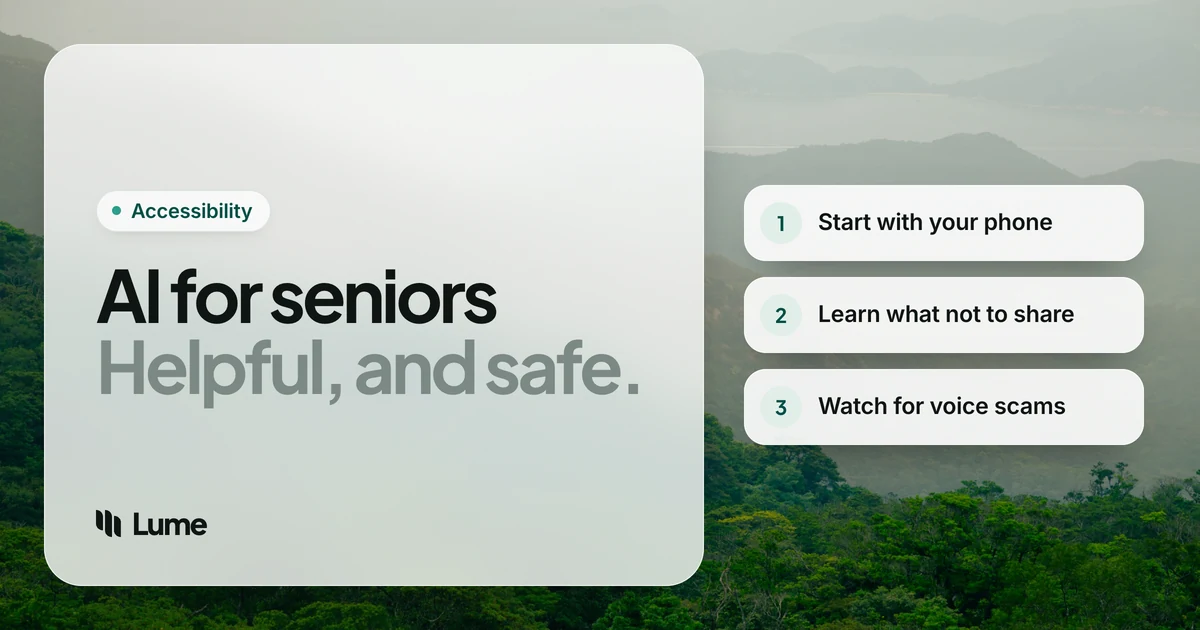
"AI" gets talked about as if it's something new and complicated, but for most older adults the useful kind is already sitting on their phone or computer. It's the voice that sets a reminder, the microphone that types a text for you, and the feature that reads a long email out loud.
This guide covers practical, safe ways to use AI for seniors in everyday life, as of October 2026: what's worth trying, what to be careful with, and how to recognize the scams that now use AI. We make LumeVoice, a voice typing app, and it comes up once; the rest are free tools you probably already have.
Start with what's already on your phone#
You don't need to download anything to try most of these. Here are the four everyday uses that tend to help most.
1. Voice assistants: reminders, calls and quick questions#
Siri on iPhone and Mac, Google's assistant on Android, and smart speakers like Amazon's Echo all answer to your voice. Good first uses:
- "Remind me to take my pills at 8 a.m."
- "Call my daughter."
- "What's the weather tomorrow?"
- "Set a timer for 20 minutes."
These are simple, low-risk tasks, and they save fiddling with small buttons. If you have trouble holding a phone steady or seeing the screen, this alone can make a difference.
2. Voice typing: texts and emails without the tiny keys#
Voice typing turns what you say into written text. On an iPhone or Android phone, tap the microphone on the keyboard and talk (Apple, Google). On a Mac, use the Dictation shortcut; on Windows, press the Windows key and H together (Apple, Microsoft).
It's especially handy if stiff fingers, a tremor or changing eyesight make small keys hard. Our page on dictation for seniors walks through setup on each device, step by step.
3. Read-aloud: let the device read small print to you#
Your devices can read text out loud. On iPhone, iPad and Mac it's called Read & Speak (Spoken Content on older versions) (Apple). On Android it's Select to Speak (Google). In the Microsoft Edge browser, Read Aloud reads a web page (Microsoft).
It's useful for long emails, news articles and instructions. If you'd like a dedicated reading app with more natural voices, our guide to Speechify alternatives compares the options.
4. Chat assistants: plain-English explanations#
Chat assistants like ChatGPT, Google's Gemini and Anthropic's Claude let you type or speak a question and get a written answer. They're good at:
- Explaining a confusing letter or bill in plain words
- Drafting a polite email, such as a complaint or a thank-you note
- Suggesting recipes from what's in the fridge
- Helping plan a trip or a family event
One important caution: chat assistants can sound confident and still be wrong. Use them for ideas and explanations, then double-check anything important, especially about health, money, medication or legal matters, with a real person: your doctor, pharmacist, bank or a trusted family member.
Staying safe: what not to share#
A few simple rules keep everyday AI use safe:
- Never type passwords, bank details, card numbers or your Social Security number into a chatbot.
- Don't share health details you'd want kept private unless you've read how the service uses them.
- Check where your voice goes. Voice tools usually send audio to the internet to turn it into text. Read the app's privacy page before you rely on it for anything sensitive.
- Keep your phone and computer updated. Updates fix security problems.
The AI scam to know about: cloned voices#
This is the one that matters most. The Federal Trade Commission warns that scammers can use AI to clone a family member's voice from a short audio clip, for example one posted online, and then call pretending to be that person in an emergency, asking for money (FTC, as of October 2026).
The FTC's advice is simple: don't trust the voice. Hang up and call the person on a number you know is really theirs. If you can't reach them, try another family member or a friend (FTC).
Some families agree on a code word that only they know, to use in a real emergency. It's a small step that makes a cloned voice easy to catch.
Warning signs of a scam call or message:
- It's urgent and emotional: an arrest, an accident, a hospital
- You're asked to keep it secret
- You're asked to pay by gift card, wire transfer, cryptocurrency or a courier picking up cash
- The caller pushes you to act before you can check
If you think you've been targeted, you can report it to the FTC at ReportFraud.ftc.gov.
Questions to ask before trying a new AI app#
New AI apps appear every week, and many are aimed at older adults. Before you download one, ask:
- Who makes it? An app from Apple, Google, Microsoft or another well-known company is easier to check up on than one with no clear owner.
- What does it cost after the trial? Some apps start free and then charge every month. Note the date the trial ends.
- What does it do with my voice and messages? Look for a plain answer on the app's privacy page about whether recordings are stored and for how long.
- Does it ask for more access than it needs? A reading app shouldn't need your contacts. If a request seems odd, say no.
- Can someone I trust look at it with me? A second pair of eyes is the best protection against a bad app.
If an app or a message ever pressures you to act quickly, that's a reason to slow down.
Using AI to stay in touch#
Some of the most valuable uses are the simplest. Voice typing makes it easier to reply to grandchildren's texts, write a longer email to an old friend, or post a comment in a family group chat. If your eyes tire quickly, have your device read incoming messages aloud. Small habits like these can keep conversations going when typing on a small screen has started to feel like a chore.
A gentle way to get started#
Pick one thing and practice it for a week:
- Week one: send three texts using voice typing. Read each one back before you press Send.
- Week two: ask your voice assistant to set a reminder each day.
- Week three: have your phone read an article to you.
- Week four: ask a chat assistant to explain something you've been curious about.
If you're helping a parent or grandparent, do the setup together with them holding the device, and leave a short written note with the steps. For free classes, Senior Planet from AARP offers technology courses for older adults (Senior Planet).
Voice typing that tidies up for you
Built-in voice typing types every "um" and "uh". LumeVoice removes them, adds punctuation and fixes small mistakes, so your emails and texts come out ready to send. It works on Mac, Windows, iPhone and Android. Try it with 3,000 free words, no card required, and if typing is hard for you, email hello@lumevoice.com for 50% off.
Where LumeVoice fits#
If built-in voice typing works for you, keep using it. LumeVoice is worth a look if you write a lot of emails or messages and would like them cleaner without editing. It takes out filler words, applies corrections when you change your mind mid-sentence, and adds punctuation and paragraphs. On a computer you hold one key while you talk (fn on a Mac, Ctrl and the Windows key on a PC); on iPhone you switch to the Lume keyboard, and on Android you tap a small bubble over your keyboard.
What it doesn't do: it doesn't read aloud, answer questions, or control your phone. It only writes what you say. It needs an internet connection. Your audio isn't stored after it's processed, nothing you say is used to train AI models, and your history stays on your own device.
The seniors guide covers setup in detail, and the accessibility page explains the discount.
This isn't medical, legal or financial advice. If typing or reading has become hard, it's worth mentioning to your doctor.