You tap the microphone on your keyboard and nothing happens. Or there's no microphone at all. Or "Speak now" appears, you talk, and the words never show up.
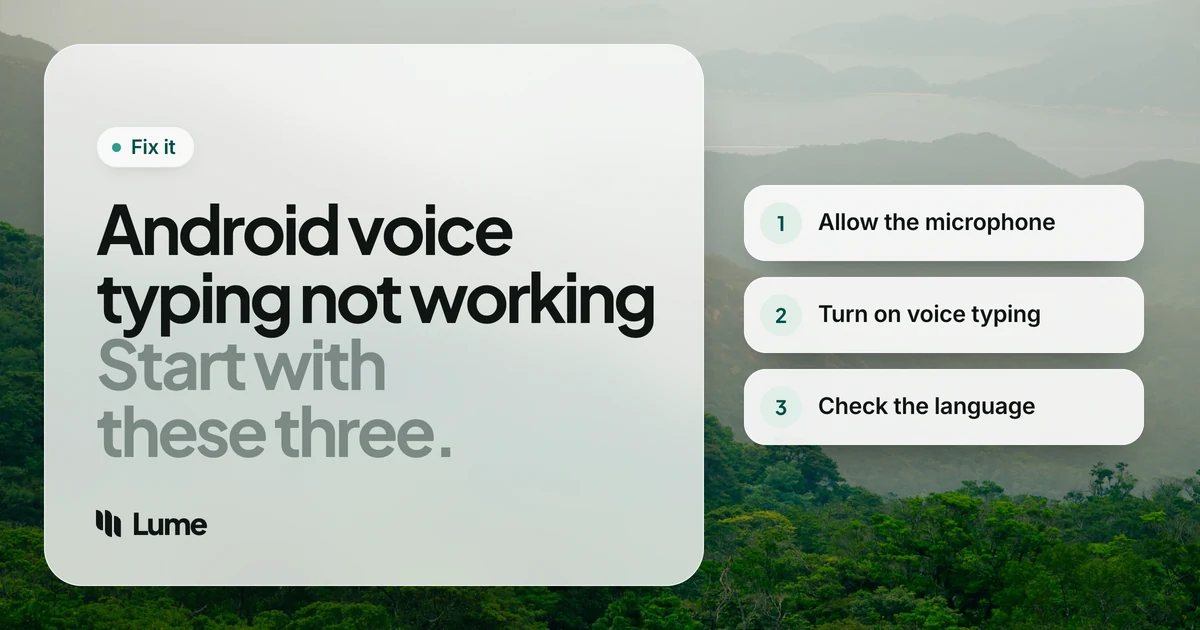
When Android voice typing is not working, it's usually one of a few things: the keyboard doesn't have microphone permission, voice typing is switched off in the keyboard's settings, the language doesn't match, or the network is in the way. Below are nine fixes in order of likelihood, with menu paths from Google's Gboard help and Android help as of October 2026.
Most Android phones use Gboard, so the steps focus on it. Menu names can vary a little by phone maker and Android version.
How Gboard voice typing should work#
Google's steps: open any app, tap a text area, tap the Microphone at the top of the keyboard, and when you see "Speak now", say what you want written. On some Pixel phones, the same microphone starts advanced voice typing, which adds punctuation and lets you edit by voice.
Quick diagnosis#
| What happens | Most likely cause | Go to |
|---|---|---|
| Tap the mic, nothing happens | Gboard has no microphone permission | Fix 1 |
| No microphone on the keyboard | Voice typing switched off in Gboard | Fix 2 |
| Nonsense, or the mic disappears in one language | Language not supported or not enabled | Fix 3 |
| Pixel: no punctuation or voice editing | Advanced voice typing off or unsupported | Fix 4 |
| "Speak now" appears, nothing types | No connection | Fix 5 |
| Works sometimes, silent other times | Another app or Bluetooth device has the mic | Fix 6 |
| Fails when the battery is low | Battery Saver restrictions | Fix 7 |
Swipe to see all columns
Samsung, Xiaomi, OnePlus and other makers rename some menus, so if a path doesn't match exactly, search for the last item (for example "Microphone" or "Permission manager") with the search box at the top of the Settings app.
The fixes, most likely first#
1. Give Gboard microphone permission#
If you tapped "Don't allow" the first time, Gboard can't hear you. Google's path for app permissions:
Settings > Apps > Gboard > Permissions > Microphone
If Gboard isn't listed, tap See all apps first. Choose Allow (or "Allow only while using the app"). You can also check it the other way round under Security & Privacy > Privacy > Permission manager > Microphone.
Also check that the phone's overall microphone access isn't switched off. Many Android phones have a Microphone access tile in Quick Settings (swipe down from the top); if it's off, no app can use the mic.
2. Turn on voice typing in Gboard#
If the microphone icon is missing from the keyboard, voice typing is likely switched off. In any app, tap a text field, tap Settings at the top of the keyboard (the gear, sometimes inside the four-square menu), then choose Voice typing and turn it on.
3. Check the language#
Google says talk-to-text "doesn't work with all languages." If your Gboard language isn't supported, the microphone may be missing or produce nothing useful.
- Add or reorder languages in Gboard's settings under Languages.
- On a tablet's voice toolbar, Google says you can tap your language's abbreviation at the bottom left and pick another.
- For multiple languages, Google notes they must be enabled in Gboard first.
4. Fix advanced voice typing on Pixel#
On Pixel phones, Google's advanced voice typing help lists the requirements:
- Pixel 6 or later (including Fold and Tablet).
- One of six languages: English, French, German, Italian, Japanese and Spanish.
- Your primary Gboard language and device language must match.
To turn it on: tap a text field, tap Settings at the top of the keyboard, choose Voice typing, and toggle Advanced voice typing features.
If it's missing on a new Pixel, Google says the phone may need a few hours to download what it needs: connect to Wi-Fi, restart, and charge overnight. On Android 12, update the Android System Intelligence app from Google Play.
5. Check your connection#
Depending on your phone and language, voice typing may send audio for processing, so it needs Wi-Fi or mobile data. Google says advanced voice typing on Pixel keeps the text you speak on your device (except Fix it), but basic voice typing on many phones depends on the network. Turn off Airplane Mode, try switching between Wi-Fi and mobile data, and pause any VPN.
6. Free the microphone#
Another app may be holding the mic: a call, a voice recorder, a video app or a voice assistant. Close them. Disconnect Bluetooth earbuds or car audio too, in case voice typing is listening through a device you're not wearing. Then test the mic itself with a quick voice recording.
7. Let Gboard run in the background#
Aggressive battery saving can stop voice typing from starting. Turn off Battery Saver for a moment and try again. On Samsung phones, also check that Gboard isn't on the sleeping apps list in Battery settings.
8. Update Gboard and the Google app, then restart#
Open Google Play, search for Gboard and the Google app, and install any updates. Then restart the phone. Outdated keyboard components are a common cause of a microphone that appears but never types.
9. Clear Gboard's cache#
As a last step: Settings > Apps > Gboard > Storage > Clear cache. Avoid "Clear storage" unless you're happy to lose learned words and settings.
If you use a different keyboard#
Samsung Keyboard, SwiftKey and others have their own voice input and their own settings. Permission, language and network checks still apply. A quick test: install Gboard from Google Play, switch to it, and try its microphone. If Gboard works, the problem is your keyboard app; if it doesn't, the problem is the phone's microphone or permissions.
To switch keyboards, tap the keyboard icon that appears in the navigation bar while you're typing, or look for the keyboard settings under Settings > System > Languages & input (the exact name varies by phone). You can switch back at any time, and your old keyboard keeps its settings.
If nothing works#
If voice typing works but doesn't do enough (it types every "um", or mishears names), our Gboard voice typing alternatives covers the options in depth. The short version, free first:
Rambler on Pixel 11. If you have a Pixel 11, try Rambler first: Google's newest voice typing removes filler words, fixes grammar and rewrites by voice.
Voice Access. Google's free accessibility app lets you control the whole phone and write by voice, for anyone who finds the touch screen hard to use (Voice Access help).
A floating dictation bubble. LumeVoice is one option. It doesn't replace your keyboard: a bubble sits over Gboard or Samsung Keyboard, you tap it, talk, and tap the check mark. It removes filler words, applies your self-corrections and adds punctuation, in 100 languages. Setup turns on Lume Voice in Accessibility settings, which it uses only to find the text field you're in and insert your words. It needs an internet connection, so it won't help offline. See the Android app page.
Keep your keyboard, add better voice typing
LumeVoice's bubble turns your speech into clean, punctuated text in any Android app, and the same plan covers Mac, Windows and iPhone. Every new account gets 3,000 free words, no card required.
Checklist#
- Settings > Apps > Gboard > Permissions > Microphone: allowed.
- Gboard settings > Voice typing: on.
- Language supported and enabled in Gboard.
- Pixel: advanced voice typing requirements met; give a new phone time.
- Connected to Wi-Fi or mobile data.
- No other app or Bluetooth device holding the mic.
- Battery Saver not blocking Gboard.
- Gboard and the Google app updated; phone restarted.
- Gboard cache cleared.