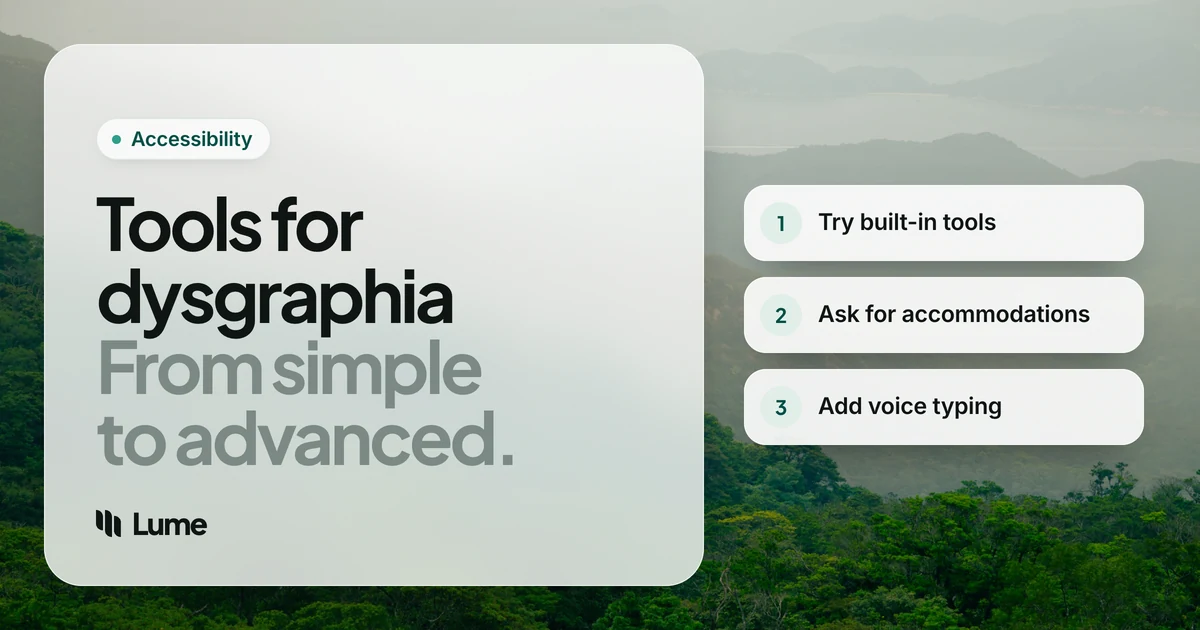
Dysgraphia makes the physical and mechanical side of writing hard: forming letters, keeping them legible, spacing words, and often spelling. The right tools for dysgraphia take as much of that as possible off your plate, so the effort goes into what you want to say rather than how to get it onto the page.
This guide covers the main kinds of assistive technology for handwriting and typing difficulty, how they fit into school accommodations, and which free tools to start with. LumeVoice, our dictation app, comes up in one section; the rest are tools you probably already have.
This isn't medical advice. Only a qualified professional can assess dysgraphia. Tools can make writing easier; they don't diagnose or treat it.
What dysgraphia is#
Understood.org describes dysgraphia as a term for trouble with writing, which many experts see as difficulty with transcription skills: handwriting, typing and spelling (Understood, as of October 2026). The International Dyslexia Association describes it as a specific learning disability affecting how easily people acquire written language and use it to express their thoughts, often showing up as impaired handwriting and sometimes spelling (IDA).
In practice that can mean slow, tiring handwriting, letters that are hard to read even for the writer, and a gap between what someone can say out loud and what they manage to write down. Dysgraphia often appears alongside dyslexia or ADHD; if that applies to you, our guides on speech to text for dyslexia and dictation for ADHD go deeper.
The tools, from simplest to most involved#
Understood's overview of assistive technology for writing lists keyboards and touchscreens, dictation, word prediction, and spelling and grammar checkers as the core options (Understood). Here's how each helps, with free versions first.
1. Typing instead of handwriting#
Swapping a pen for a keyboard is the first step for many people. Letters are always legible, spacing is automatic, and editing doesn't mean rewriting a page.
Where it falls short: typing is still a motor task. Some people with dysgraphia type slowly or find it tiring, especially on a phone keyboard. If typing feels nearly as hard as handwriting, skip ahead to dictation.
2. Speech to text (dictation)#
Dictation lets you say the sentence and have the device type it, which removes both letter formation and spelling from the draft. It's built into every major platform, free:
- iPhone and Mac: Apple Dictation, from the microphone on the keyboard or the Dictation shortcut (Apple, iPhone; Apple, Mac).
- Windows: Windows key + H opens voice typing, which needs an internet connection (Microsoft).
- Android: the microphone on Gboard (Google).
- Google Docs: Tools > Voice typing in Chrome (Google). Word: the Dictate button (Microsoft).
Understood notes that dictation works best when you speak clearly and learn the spoken commands for punctuation (Understood). That learning curve is real, especially for younger students, so practice on low-stakes writing first.
3. Word prediction#
Word prediction suggests the word you're starting to type, so you type fewer letters. Phone keyboards do this by default, and dedicated word-prediction programs go further. It still needs a keyboard, so it suits people for whom typing is manageable but spelling is the sticking point.
4. Spelling and grammar checkers#
Built into Word, Google Docs and phone keyboards. They're most useful at the end. While drafting, a screen full of underlines can pull attention away from the ideas, so many writers switch checks off until the draft is done.
5. Text to speech for reading work back#
Hearing your own writing read aloud is one of the best ways to catch a wrong word, especially after dictation, when a misheard word can be spelled perfectly but still be wrong. Use Read & Speak on Apple devices (Apple), Select to Speak on Android (Google), or Immersive Reader in Word and Edge (Microsoft). For dedicated reading apps, see our Speechify alternatives guide.
6. Low-tech helpers#
Not everything needs an app. Graph paper or raised-line paper for handwriting, pencil grips, and photographing the board instead of copying it all help some students. An occupational therapist can suggest what suits a particular person.
Dysgraphia accommodations at school#
In the US, students with a disability can get support through an IEP (Individualized Education Program) or a 504 plan. Understood explains that IEPs provide specialized instruction, while 504 plans remove barriers so students can learn in the general curriculum (Understood). For dysgraphia, plans commonly include things like:
- Using a computer or tablet for written work
- Speech to text for assignments and, where allowed, tests
- Extra time for written tasks
- Copies of class notes, or permission to photograph the board
- Grading on content rather than handwriting or spelling
Every school and plan is different, so ask what's available. Two practical tips: get the tool written into the plan by name or by type ("speech-to-text software") so it isn't up to each teacher, and practice at home so test day isn't the first time the student uses it.
Outside the US, schools usually have equivalent processes; ask the school's special educational needs coordinator or learning support team.
Matching tools to age and stage#
The right tool depends a lot on who's using it.
- Younger children are usually still being taught handwriting, so tools tend to sit alongside instruction rather than replace it. Short dictation sessions for stories, with an adult helping to read back, can let a child show what they know without the page becoming the barrier.
- Older students write longer assignments under time pressure. This is where typing, dictation and read-back together make the biggest difference, and where getting tools into an IEP or 504 plan matters most.
- Students heading to college should practice with the tools they'll be allowed to use there, on their own devices, so they aren't relying on a school laptop that disappears at graduation.
Whatever the age, introduce one tool at a time and give it a couple of weeks. Switching between five apps at once adds a new kind of effort, which is the opposite of the point.
Adults with dysgraphia#
Dysgraphia doesn't end with school. At work, the same tools apply: dictation for emails and reports, read-back to check them, and templates or saved text for things you write often. Built-in tools are usually allowed on work computers. If you'd like something that does more of the tidying for you, that's where a dedicated dictation app comes in.
Say it, and let LumeVoice handle the spelling
LumeVoice types what you say into any app on Mac, Windows, iPhone and Android, and cleans it up as you go: filler words out, punctuation in, spelling and grammar fixed, spoken lists turned into lists. New accounts start with 3,000 free words, no card required. If writing is hard for you, email hello@lumevoice.com for 50% off Pro, no proof needed.
Where LumeVoice fits#
Built-in dictation types what you say, word for word. That's fine for a quick message, but in a longer piece the "um"s, restarts and missing punctuation all need fixing by hand, which is the part dysgraphia makes hard.
LumeVoice is built to reduce that fixing. It removes filler words and stutters, applies self-corrections ("page four, no, page five" becomes "page five"), adds punctuation and paragraph breaks, and fixes spelling and grammar. On a computer you hold one key while you talk (fn on a Mac, Ctrl + Win on Windows) and the text appears where your cursor is; double-press it to talk hands-free. On iPhone it's a keyboard, and on Android a bubble that sits over your normal keyboard. On Mac and Windows, a custom dictionary helps with names and subject words.
Be clear about the limits: LumeVoice needs an internet connection, it doesn't read text aloud, and it can't control your computer by voice. Schools that lock down devices may not allow installing it, in which case the built-in options above are the way to go. It also isn't certified as a medical or educational device.
For students and teachers there's 50% off (students); for anyone who finds writing hard there's the accessibility discount.
A starting plan#
- Try typing and built-in dictation for a week each, on real assignments or emails.
- Add read-back to every piece you write.
- Talk to the school (or your employer) about getting the tools that work written into a plan.
- Upgrade only if something holds you back: more natural voices, cleaner dictation, or a dictionary for subject words.