Saying "comma" out loud feels strange at first, and saying it after every clause gets old fast. But dictation punctuation commands still matter: they're how you get a colon, a quote or a paragraph break exactly where you want it. Here are the lists for each major tool, from Apple, Microsoft and Google's own help pages as of October 2026, plus how to turn on automatic punctuation so you can skip most of them.
These are the English commands. Every vendor publishes separate lists for other languages.
The commands that work almost everywhere#
| You say | You get | Apple | Windows | Google Docs / Gboard | Word |
|---|---|---|---|---|---|
| "period" / "full stop" | . | Both | Both | "period" | Both |
| "comma" | , | Yes | Yes | Yes | Yes |
| "question mark" | ? | Yes | Yes | Yes | Yes |
| "exclamation point" / "exclamation mark" | ! | Yes | "exclamation mark" | "exclamation point" (Docs) | Both |
| "new line" | line break | Yes | Yes | Yes | Yes |
| "new paragraph" | paragraph break | Yes | Yes | Yes | Not listed |
Swipe to see all columns
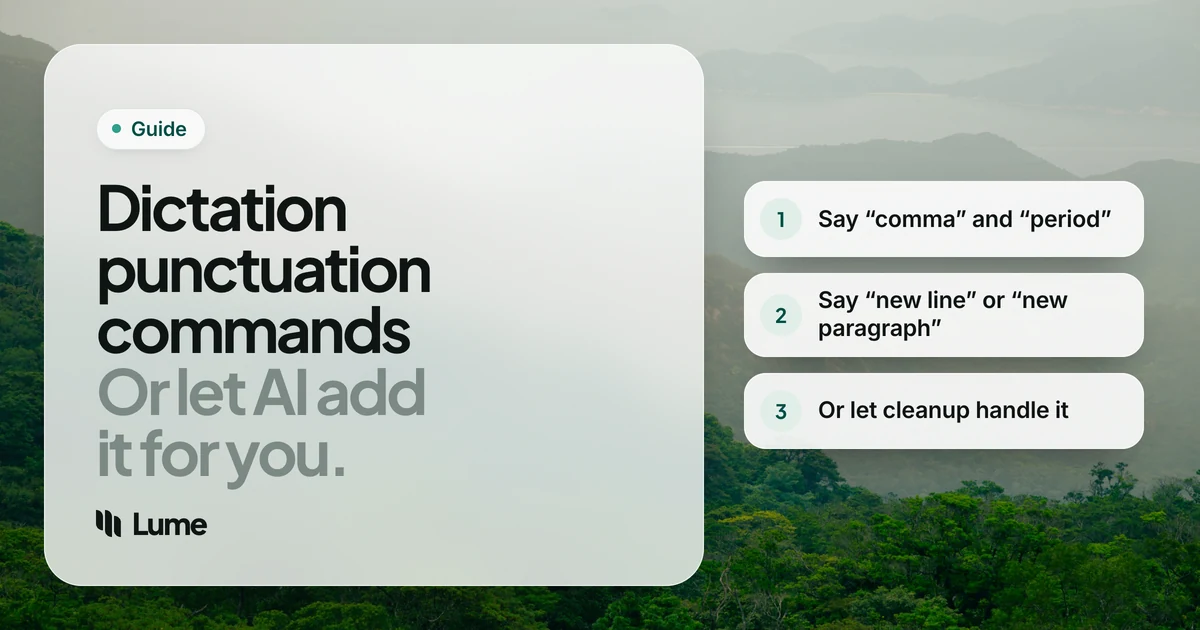
If you learn only these six, you can dictate almost anything.
Apple Dictation (Mac and iPhone)#
Apple's Mac list (Dictation commands) covers, in English:
- Punctuation: "comma", "period" or "full stop", "question mark", "exclamation mark", "apostrophe", "colon", "semicolon", "hyphen", "dash", "ellipsis", "quote" … "end quote", "open parenthesis" / "close parenthesis".
- Formatting: "new line", "new paragraph", "tab key", "no space on" / "no space off".
- Capitals: "caps on" / "caps off" (Title Case), "all caps" for the next word, "all caps on" / "all caps off".
- Symbols: "at sign", "hashtag", "ampersand", "percent sign", "dollar sign", "euro sign" and more.
On iPhone, Apple's list works the same way, with commands such as "new line", "new paragraph" and saying the mark's name (iPhone dictation commands).
Skip most of them: with Auto-punctuation on (Mac: System Settings > Keyboard > Dictation; iPhone: Settings > General > Keyboard), Apple adds commas, periods and question marks in supported languages. Say a mark only when you want one it won't add itself, like a colon or quotes. Full Mac setup: how to use dictation on Mac.
Windows voice typing (Win + H)#
Microsoft's English list for voice typing (voice typing guide) includes:
- Punctuation: "period" or "full stop", "comma", "question mark", "exclamation mark".
- Breaks: "new line", "new paragraph".
- Editing: "delete that", "select that", "undo that", "press enter", "press backspace", "press tab", "stop listening".
Skip most of them: turn on automatic punctuation in the voice typing settings. On Copilot+ PCs, Fluid dictation goes further in English, correcting grammar, punctuation and filler words as you speak. More in our Windows voice typing guide.
Google Docs voice typing and Gboard#
Google keeps the list short. In Google Docs (Tools > Voice typing), the punctuation you can say is "period", "comma", "exclamation point", "question mark", "new line" and "new paragraph". Docs also has editing commands such as "select paragraph", "apply heading 2" and "create bulleted list"; say "voice commands list" to see them. Commands need both your account and document language set to English (speech to text in Google Docs).
In Gboard on Android, say "period", "comma", "question mark", "new line" or "new paragraph" (Gboard voice typing help). Google notes punctuation "might not be available in all languages."
Skip most of them: on Pixel 6 and later, Gboard's advanced voice typing adds punctuation automatically in English, French, German, Italian, Japanese and Spanish. Docs has no auto-punctuation setting.
Microsoft Word Dictate#
Word has the longest list (Dictate in Word):
- Punctuation: "period" or "full stop", "comma", "question mark", "exclamation mark" or "exclamation point", "new line", "apostrophe-s", "colon", "semicolon", "open quotes" / "close quotes", "hyphen", "ellipsis" or "dot dot dot", "open single quote" / "close single quote", "open parentheses" / "close parentheses", "open bracket" / "close bracket", "open brace" / "close brace".
- Symbols: commands for the asterisk, backslash, forward slash, vertical bar, backtick, underscore, m-dash and n-dash, paragraph and section signs, ampersand, at sign, copyright, registered, degree and caret.
- Math and money: percent, number sign, plus, minus, multiplication, plus or minus, division, equal, less than and greater than, plus the dollar, pound sterling, euro and yen signs. Say "show commands" in Dictate for the exact wording in your version.
- Editing and formatting: "delete that", "undo", "insert space", "bold", "italicize", "underline", "capitalize", "uppercase", "align center" and more, most with a target ("bold last sentence").
Skip most of them: turn on Auto Punctuation under the Dictate gear icon, where your language supports it. See voice typing in Microsoft Word.
Commands in other languages#
Every vendor translates its commands, and the lists aren't identical across languages. A few things to know:
- Apple publishes dictation commands per language and notes that other dictation languages have their own; some features, like emoji by name, only exist in some languages.
- Microsoft keeps a full command list for each supported language on its voice typing page. On Windows 10's older dictation, commands were only available in US English.
- Google Docs editing and formatting commands are English-only, and Google notes that spoken punctuation isn't available in every language.
- Word Dictate is most complete in its fully supported languages; preview languages may have limited punctuation support.
If you dictate in more than one language, look up the punctuation words for each and practise the five you use most. Or lean on automatic punctuation, which works without learning anything new.
Tips for commands that work the first time#
- Pause a beat around the command. "...end of the quarter [pause] period [pause] Next..." helps the tool hear it as a command, not a word.
- Match the language. Commands are per language. If "comma" keeps appearing as a word, check the dictation language.
- Use the vendor's exact wording. "Exclamation point" and "exclamation mark" aren't interchangeable everywhere.
- Don't fight auto-punctuation. If it's on, say only the marks it won't add. If it keeps adding marks in the wrong place, turn it off and say them all.
- Fix with the keyboard when faster. Editing commands are useful, but a quick click is often quicker for a single mark.
Why AI dictation needs fewer commands#
Classic speech recognition writes down exactly what it hears, so punctuation has to be spoken. Auto-punctuation adds the common marks from your pauses and phrasing. AI dictation apps go a step further: a language model reads the whole transcript and adds punctuation, capitals and paragraph breaks from the meaning of what you said, alongside removing filler words.
That doesn't make commands useless. You still want them for a colon before a list, a line break inside an address, or quotes around someone's words.
LumeVoice works that way. It adds punctuation, capitals and paragraph breaks from context, so most of the time you just talk. When you want a specific break or mark, it follows spoken punctuation such as "comma", "new line" and "new paragraph". It also turns spoken lists into numbered or bulleted lists. It doesn't have formatting commands like "bold that"; for those, Word's Dictate or Docs voice typing is the better tool.
You say (illustrative): "Hi Sam, quick update on the launch, um, we're on track for Friday new paragraph two things I need from you, first the final copy, second the pricing table"
You get: "Hi Sam, quick update on the launch: we're on track for Friday.
Two things I need from you:
- The final copy
- The pricing table"
Stop saying comma
LumeVoice punctuates from context, removes filler words and still follows "new paragraph" when you want one, in any app on Mac, Windows, iPhone and Android. Every new account gets 3,000 free words, no card required.