You tap a text field and the microphone isn't on the keyboard. Or you tap it, talk, and nothing appears. Or it types, but in the wrong language, or stops halfway through a sentence.
When iPhone dictation is not working, the fix is usually a setting, not a broken phone. Below are nine fixes in order of how often they're the cause, with Apple's own menu paths from the iPhone User Guide (iOS 27, checked October 2026). Older iOS versions use the same paths for the basics.
How iPhone dictation is supposed to work#
Apple's version, in short: tap in a text field, tap the microphone on the onscreen keyboard (or in the text field), and start talking when the microphone appears near the insertion point. The keyboard stays open, so you can mix typing and voice.
Apple says Dictation is processed on your iPhone in many languages, with no internet connection required. Dictation may not be available in every language or country, and features vary by region.
Quick diagnosis#
| What happens | Most likely cause | Go to |
|---|---|---|
| No microphone on the keyboard | Dictation turned off | Fix 1 |
| Enable Dictation missing or greyed out | Screen Time or a managed profile | Fix 2 |
| Microphone looks different | A third-party keyboard is active | Fix 3 |
| Words come out in the wrong language | Keyboard language mismatch | Fix 4 |
| Works on Wi-Fi only, or never | Network needed for your language | Fix 5 |
| Silence, or very quiet results | Microphone blocked or Bluetooth audio | Fix 6 |
| Stops mid-thought | 30 seconds of silence | Fix 7 |
Swipe to see all columns
The fixes, most likely first#
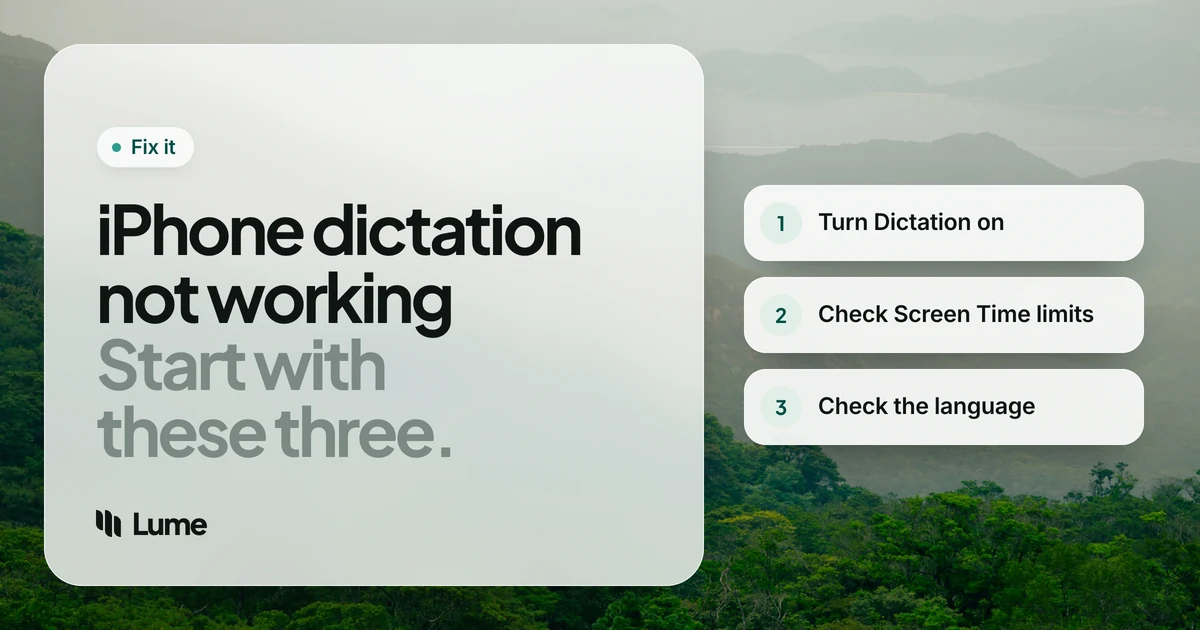
1. Turn on Enable Dictation#
If there's no microphone on your keyboard, this is the fix nine times out of ten.
Settings > General > Keyboard > Enable Dictation
Turn it on, and tap Enable Dictation again if a prompt appears. Then open any app with a text field and look for the microphone.
2. Check Screen Time restrictions#
If Enable Dictation is missing, greyed out or switches itself off, a Screen Time restriction may be blocking it. This is common on phones set up by a parent, school or employer. Apple's Screen Time guide puts the controls here:
- Settings > Screen Time > Content & Privacy Restrictions > Siri, for Siri and Apple Intelligence features.
- Settings > Screen Time > Content & Privacy Restrictions > Other Features, for built-in apps and features.
Apple's page doesn't name Dictation in those lists, but user reports point to Siri restrictions as a cause of a missing Enable Dictation switch. The quick test: turn off Content & Privacy Restrictions for a moment (you'll need the Screen Time passcode) and see whether the switch comes back. If the phone is managed by work or school, the restriction may come from a device profile only your IT team can change.
3. Switch back to the Apple keyboard#
Dictation's microphone lives on Apple's own keyboard. If you use Gboard, SwiftKey or another keyboard app, the microphone you see belongs to that app, with its own settings and permissions. Tap and hold the globe key and choose your Apple keyboard to see if dictation works there.
4. Use a keyboard language that supports dictation#
Apple says that when you use a keyboard for another language, Dictation uses that language too. So if your active keyboard is set to a language you're not speaking, you'll get nonsense, and if the keyboard's language doesn't support dictation, the microphone may not appear.
- Add a keyboard: Settings > General > Keyboard > Keyboards > Add New Keyboard.
- Switch: tap the globe key before tapping the microphone.
5. Check your internet connection for languages that need it#
Many languages are processed on the iPhone, but not all. If your language isn't, dictation needs Wi-Fi or cellular data. Try:
- Turning off Airplane Mode.
- Switching between Wi-Fi and cellular.
- Turning off a VPN or content filter for a moment.
- Checking that cellular data is allowed if you're away from Wi-Fi (Apple notes cellular charges may apply).
If dictation works on Wi-Fi but not on cellular, or the reverse, it's a network issue, not a dictation one.
6. Make sure the microphone itself works#
Record a quick voice memo or video. If it plays back silent or muffled:
- Clean the microphone openings gently and remove a case that might cover them.
- Disconnect Bluetooth headphones or car audio. Dictation may be listening through AirPods in your pocket or a car you just left.
- Close calls and recording apps that might be holding the mic.
7. Know when dictation stops by itself#
Dictation that "cuts out" may just be doing what Apple designed. Apple says dictation stops when you tap the microphone, say "stop dictation", or stay silent for 30 seconds. Long pauses to think will end the session; tap the microphone again to carry on.
8. Turn Enable Dictation off and on, then restart#
Go to Settings > General > Keyboard, turn off Enable Dictation, restart the iPhone, then turn it back on. This makes the phone set dictation up again, which can fix a microphone that appears but never types anything.
9. Update iOS#
Install updates under Settings > General > Software Update. Dictation improves with each release; Apple says that in iOS 27, Apple Intelligence uses an on-device model to improve dictation's spelling, punctuation and capitalization in English on supported iPhones.
Punctuation and commands not behaving?#
Two quick checks if dictation works but the text looks wrong:
- Unwanted punctuation: turn off Auto-Punctuation under Settings > General > Keyboard.
- Commands typed as words: Apple's commands include saying the punctuation name ("exclamation point"), "new line", "new paragraph", "undo" and "select" or "delete" followed by a phrase. Speak them clearly with a short pause. Apple's dictation commands page lists more.
If nothing works#
Sometimes Apple Dictation works but still doesn't suit you: it types every "um", it can't learn names, or a managed phone keeps it switched off. Options, free first:
Use dictation on your Mac instead. If the writing can wait, Mac Dictation is similar and free. See how to use dictation on Mac.
Try Gboard's voice typing. Google's free keyboard for iPhone has its own microphone and works independently of Apple's Dictation setting (it needs microphone access for the Gboard app).
A dictation keyboard app. LumeVoice is one option, on iOS 17 or later. It's a keyboard extension called "Lume Voice": switch to it in any app, tap Start Lume (the app opens for a moment to turn on the mic), swipe back and talk. It removes filler words, applies your self-corrections, adds punctuation and turns spoken lists into lists, with writing styles such as Casual and Work. It needs Allow Full Access and an internet connection, so unlike Apple Dictation it can't work offline. Audio isn't stored after processing and is never used for training. See the iPhone app page.
A keyboard that writes what you meant
The Lume keyboard turns your speech into clean, punctuated text in any iPhone app, and the same plan covers Mac, Windows and Android. Every new account gets 3,000 free words, no card required.
Checklist#
- Settings > General > Keyboard > Enable Dictation: on.
- Screen Time > Content & Privacy Restrictions: not blocking Siri or features.
- Apple keyboard selected (globe key).
- Keyboard language matches what you're saying.
- Online, if your language isn't processed on the iPhone.
- Microphone works; Bluetooth audio disconnected.
- Remember: 30 seconds of silence stops dictation.
- Toggle Enable Dictation and restart.
- Update iOS.
Fix 1 solves most missing-microphone cases, and fix 4 solves most "it types gibberish" ones.