If you have low vision, typing is often less about your hands and more about your eyes: finding the right key, spotting the typo, keeping your place in a long email. Dictation for low vision helps with the first part, because you write by talking. The second part, checking what you wrote, needs a screen reader, magnification or read-aloud alongside it.
This guide covers how to combine those tools on Mac, Windows, iPhone and Android, as of October 2026. We make LumeVoice, a dictation app, and we're upfront below about where it works well and where it doesn't yet. For many people with low vision, the free built-in tools are the better place to start.
This isn't medical advice. If your eyesight has changed, see an eye care professional. Sight-loss charities such as RNIB and the American Foundation for the Blind can also help you find the right technology.
The two halves: writing and checking#
The American Foundation for the Blind describes screen readers as software that lets blind or visually impaired people read the text on screen through a speech synthesizer or braille display (AFB). Dictation does the reverse: it turns your speech into text. Together they make a complete loop: say it, hear it back, fix it, send it.
People with some useful vision often use magnification instead of, or as well as, a screen reader. RNIB covers both screen magnification and screen-reading software in its technology guides (RNIB, magnification; RNIB, screen readers).
Screen readers on each platform#
All of these are free unless noted:
- Mac: VoiceOver, built in. Apple's VoiceOver User Guide covers setup and commands (Apple).
- iPhone and iPad: VoiceOver, in Settings > Accessibility (Apple).
- Windows: Narrator, built in; start it with Windows logo key + Ctrl + Enter (Microsoft). RNIB also lists NVDA, a free download, and JAWS, a paid screen reader (RNIB).
- Android: TalkBack (Google).
Magnification on each platform#
- Mac: Zoom, in System Settings > Accessibility (Apple).
- iPhone: Zoom (Apple).
- Windows: Magnifier, on with Windows logo key + Plus sign and off with Windows logo key + Esc (Microsoft).
- Android: Magnification (Google).
Built-in dictation: start here#
Built-in dictation is free and made by the same company as your screen reader, which usually means the two are designed to work together.
- Mac: Apple Dictation, via the Dictation shortcut (Apple).
- iPhone: the microphone key on the keyboard (Apple).
- Windows: voice typing with Windows key + H; it needs an internet connection (Microsoft).
- Android: voice typing on Gboard (Google).
If you'd also like to move around your device by voice, Voice Control (Mac, iPhone) and Voice Access (Windows 11, Android) do that (Apple, Microsoft, Google).
A dictation workflow that works without seeing the text#
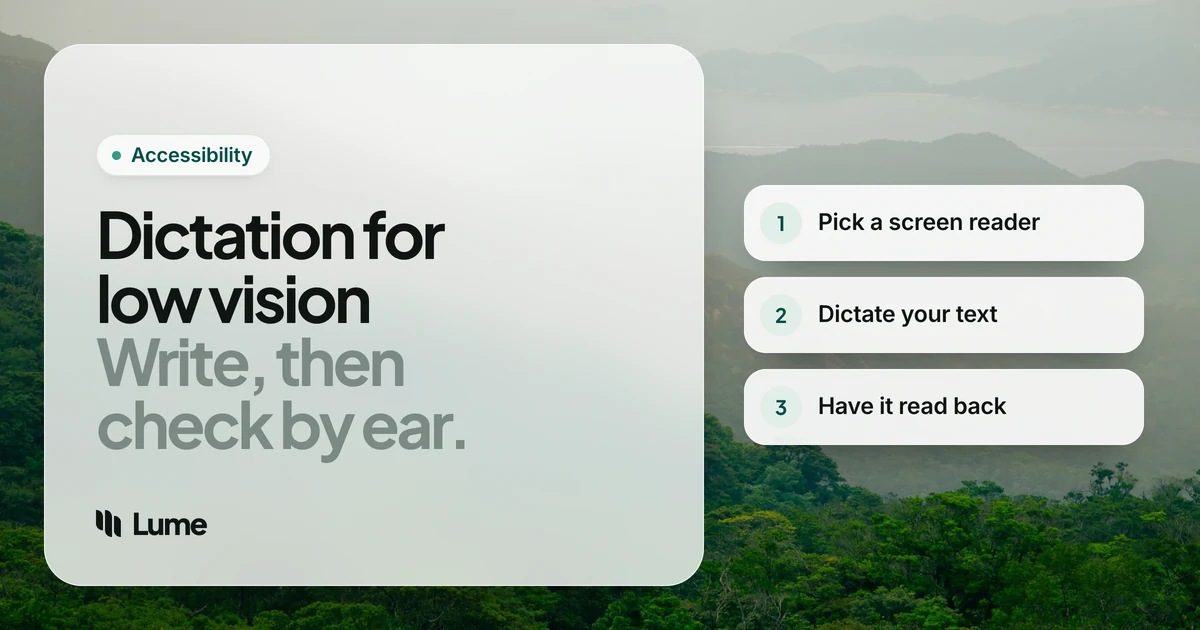
- Put the cursor where the text should go. Your screen reader will tell you which field you're in.
- Say one or two sentences at a time. Short chunks are easier to check by ear.
- Listen back right away. Have your screen reader read the line or paragraph you just dictated. Misheard words are easier to fix while the sentence is fresh.
- Fix by voice or keyboard. Re-dictate the sentence if it's quicker than editing a word.
- Read the whole thing once before sending. A read-aloud feature like Read & Speak on Apple devices (Apple) or Select to Speak on Android (Google) also works for this.
Watch for audio overlap. If your screen reader is speaking while you dictate, some dictation tools can pick up its voice. Headphones prevent that.
For longer reading, such as documents, PDFs and books, our guide to Speechify alternatives compares dedicated text-to-speech apps.
Fewer fixes after you dictate
LumeVoice removes "um"s and false starts, adds punctuation and fixes spelling as you talk, so there's less to find and correct by ear or under magnification. It types into any app on Mac, Windows, iPhone and Android. Try it with 3,000 free words, no card required alongside your screen reader, and if low vision makes typing hard, email hello@lumevoice.com for 50% off.
Where LumeVoice helps, and where it falls short#
Where it can help: checking text by ear or under magnification is slow, so every fix you don't have to make counts. LumeVoice cleans text as you talk: it removes filler words and stutters, applies self-corrections ("at three, actually four" becomes "at four"), adds punctuation and paragraph breaks, and fixes spelling and grammar. On a computer you start it by holding one shortcut, fn (Globe) on a Mac or Ctrl + Win on Windows, with no button to find on screen. Double-press for hands-free mode, and on Windows, Esc cancels. The text lands in whatever field your cursor is in, where your screen reader can read it. On Mac and Windows, a custom dictionary helps with names and terms.
Where it falls short, honestly:
- Its feedback is visual. On a computer, a small pill above the Dock or taskbar shows a waveform while you talk and a check mark when the text lands. If there's no text field, the pill shows your words with a Copy button. We don't yet document how these behave with VoiceOver, Narrator, NVDA, JAWS or TalkBack, so don't count on hearing them announced.
- The phone apps aren't built around large text. The LumeVoice app's own screens on iPhone and Android don't currently grow much when you turn up your phone's text size. You may need Zoom or Magnification for setup and settings.
- The iPhone flow has extra steps. You switch to the Lume keyboard, tap Start Lume (the app opens for a moment to turn on the microphone), then swipe back and talk. That's more moving between screens than tapping the built-in microphone key, which may matter if you use VoiceOver.
- Shortcut overlap with Narrator. LumeVoice's default Windows shortcut, Ctrl + Win, shares two keys with Narrator's on/off shortcut (Windows logo key + Ctrl + Enter). Holding Ctrl + Win alone won't start Narrator, but if you'd rather keep them well apart, choose a different LumeVoice shortcut in Settings, such as Right Ctrl, Right Alt or an F-key.
- It doesn't read aloud and doesn't control your device. It needs an internet connection.
If those limits matter to you, the built-in tools above are the better choice today. If you try LumeVoice and something doesn't work with your screen reader, email hello@lumevoice.com and tell us. As a one-person company, that feedback goes straight to the person who builds it.
On privacy: your audio is sent for processing and isn't stored afterward, nothing you say is used to train models, and your dictation history stays on your device.
Built-in or paid: a quick comparison#
| Built-in dictation | LumeVoice | |
|---|---|---|
| Cost | Free | 3,000 free words, no card required, then Pro (50% off if typing is hard) |
| Made to pair with your screen reader | Yes, same company | Not yet documented; test it first |
| Cleans up filler words and false starts | Some newer devices, in English | Yes |
| Starts with | Shortcut or microphone key | One held key on a computer; Lume keyboard or bubble on phones |
| Large text in its own screens | Part of the system, so it uses the system's display settings | Phone app doesn't scale up much yet |
| Works without internet | Some, depending on device and language | No |
Swipe to see all columns
If you rely fully on a screen reader, built-in dictation is the safer choice today. If you have some vision, use magnification, and spend a lot of time fixing filler words and punctuation, LumeVoice is worth a free try.
Tips for getting started#
- Learn one screen reader command first: how to read the current line. That's the one you'll use after every dictation.
- Use a headset to keep your screen reader's voice out of the microphone and your voice clear.
- Set up text replacements or snippets for things you write often, like your email address or sign-off.
- Ask for help. RNIB in the UK and AFB in the US both have advice on choosing and learning assistive technology (RNIB; AFB).
If changing eyesight is one of several reasons typing has become harder, our page on dictation for seniors has a gentle setup guide, and the accessibility page explains the discount.