Whether it's a broken wrist for six weeks, recovery after surgery, a limb difference or a long-term condition, one-handed typing is something a lot of people have to figure out quickly. The good news: your computer and phone already have settings built for it, and voice typing can take over most of the heavy lifting.
This guide covers one-handed keyboard layouts, the operating system features that help, phone keyboards, and how to combine them with voice typing, as of October 2026. We make LumeVoice, a voice typing app, and we'll say where it fits; most of what follows is free and built in.
This isn't medical advice. If you're recovering from an injury or surgery, follow your doctor's or therapist's guidance on how much to use the affected hand.
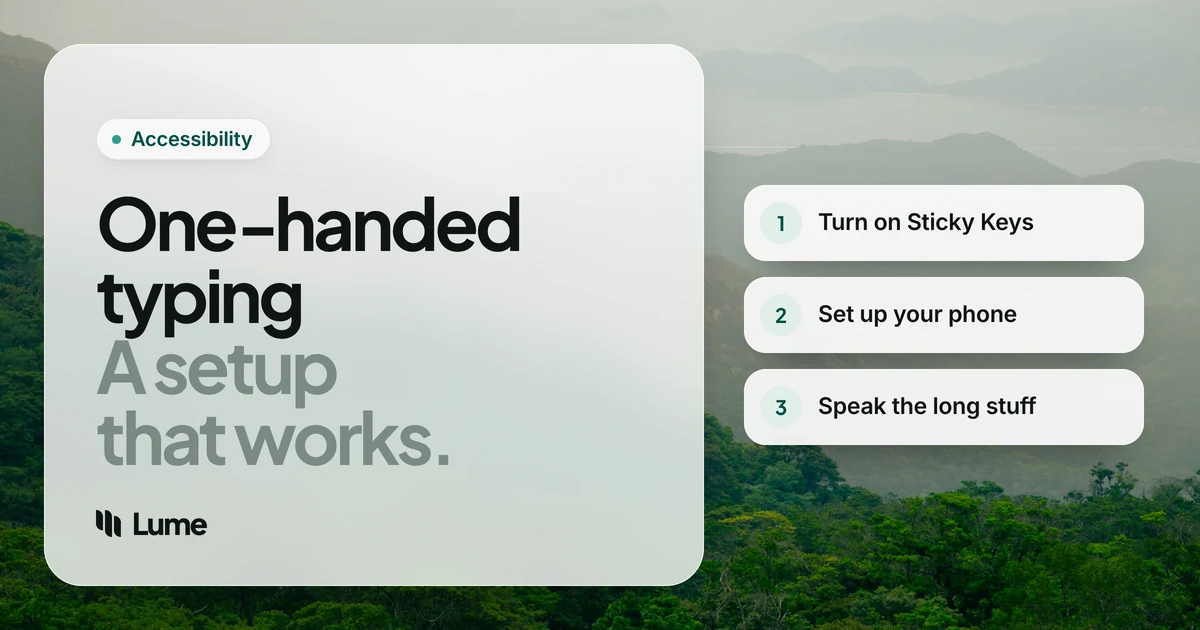
Step 1: make shortcuts one-key-at-a-time with Sticky Keys#
Keyboard shortcuts are the first thing that breaks with one hand. Ctrl + Shift + T or Command + Option + Esc can need three fingers spread across the keyboard.
Sticky Keys fixes that. With it turned on, you press a modifier key (Shift, Ctrl, Alt, Command, Option), let go, and then press the next key. The modifier "sticks" until you do.
- Windows: Settings > Accessibility > Keyboard, then turn on Sticky keys. Microsoft describes it as being for anyone who has trouble pressing two keys at the same time (Microsoft, as of October 2026).
- Mac: System Settings > Accessibility > Keyboard, then turn on Sticky Keys. Apple's guide covers the options, like a sound when a modifier is set (Apple).
Windows also has an On-Screen Keyboard (Windows logo key + Ctrl + O) that you can use with a mouse or trackpad when a key is out of reach (Microsoft).
Step 2: consider a one-handed keyboard layout#
The standard QWERTY layout spreads common letters across both hands. One-handed layouts rearrange them so the letters you use most sit under one hand.
- One-handed Dvorak on Windows. Windows includes "United States-Dvorak for left hand" and "United States-Dvorak for right hand" keyboard layouts (Microsoft). Add one from your language's keyboard options in Windows Settings. You'll want printed key labels or a reference image at first, because the letters on your keys won't match.
- Mirrored layouts. Some software lets you hold a key (usually Space) to "flip" the keyboard, so your one hand types the letters normally typed by the other. These take less relearning than Dvorak, since your hand uses the same finger movements, mirrored.
- Dedicated one-handed keyboards. Hardware made for one hand exists, often using chords (several keys at once) to produce each letter. They can be fast once learned but have the steepest learning curve.
Is it worth it? If your situation is long term and you type a lot, a one-handed layout can pay off over months. For a temporary injury, the weeks of retraining usually aren't worth it; Sticky Keys plus voice typing gets you further, faster.
Step 3: set up your phone for one hand#
Phones are already one-hand-friendly, but a couple of settings help:
- iPhone: touch and hold the emoji or Switch Keyboard key and pick the left- or right-handed keyboard, which squeezes the keys toward one side (Apple). Reachability brings the top of the screen down within reach of your thumb (Apple).
- Android: one-handed mode pulls the top half of the screen down; turn it on in Settings (Google).
And on both, the microphone on the keyboard turns your voice into text (Apple, Google).
The mouse and trackpad#
Typing isn't the only thing that gets harder with one hand. Dragging, right-clicking and selecting text can be awkward too.
- Use the hand you have for the pointer, and voice for text. Many people keep a mouse or trackpad on their working side and let dictation handle sentences, so the hand rarely has to switch between keyboard and pointer.
- Mouse keys on Windows let you move the pointer with the number pad instead, under Settings > Accessibility > Mouse (Microsoft).
- Move the keyboard. If you're typing with your non-dominant hand, center the keyboard's letters, not the whole keyboard, in front of that shoulder. It cuts the reaching.
Temporary or long term? Pick a plan to match#
| Your situation | Worth doing | Probably not worth it |
|---|---|---|
| A few weeks in a cast or sling | Sticky Keys, voice typing, phone one-handed keyboard | Learning a new layout or buying special hardware |
| Months of recovery | All of the above, plus snippets for text you repeat | Expensive hardware before you know what works |
| Long term or permanent | All of the above, plus trying a one-handed layout or keyboard | Relying on typing alone for long writing |
Swipe to see all columns
Step 4: let voice typing do the long stuff#
Here's the honest truth about one-handed typing: even with the best layout, typing whole emails with one hand is slow and tiring. Voice typing changes the math. People talk far faster than they type, and a study by researchers at Stanford, the University of Washington and Baidu found speech input about three times faster than typing on a phone keyboard (Ruan et al.).
The free options are built in:
- Mac: Apple Dictation, via the Dictation shortcut (Apple).
- Windows: Windows key + H; it needs an internet connection (Microsoft).
- Google Docs: Tools > Voice typing (Google).
A good split: voice for sentences, one hand for edits. Say the paragraph, then use your free hand to fix a word, move the cursor, or press Send.
If you need to control the whole computer without your hands, not just write, look at Voice Control on Mac and iPhone or Voice Access on Windows 11 and Android (Apple, Microsoft, Google). Our Talon alternatives guide covers more hands-free options.
One key, then just talk
LumeVoice types what you say into any app on Mac, Windows, iPhone and Android, with filler words removed and punctuation added. Double-press the shortcut for hands-free mode, so your hand can rest while you talk. New accounts start with 3,000 free words, no card required. If typing is hard because of an injury or disability, email hello@lumevoice.com for 50% off, no proof needed.
Where LumeVoice fits for one-handed use#
Built-in dictation types your words as you say them, including "um"s and restarts, and fixing those with one hand is exactly the slow part you're trying to avoid. LumeVoice cleans the text as you go: it removes filler words and stutters, applies your self-corrections ("Thursday, actually Friday" becomes "Friday"), adds punctuation and paragraphs, and fixes spelling and grammar.
For one hand specifically:
- Mac: the default shortcut is a single key, fn (Globe), so you hold it with one finger while you talk.
- Windows: the default is Ctrl + Win, which sit next to each other in the bottom-left corner of most keyboards. If that's awkward for your hand, pick a single key in Settings, such as Right Ctrl, Right Alt or an F-key.
- Hands-free: double-press the shortcut to keep talking without holding anything; press once to finish. On Windows, Esc cancels.
- Phones: tap the Lume keyboard's start button on iPhone, or the floating bubble on Android, and talk.
- Snippets let you say a short cue for text you type often, like your address or sign-off.
What it won't do: LumeVoice writes; it doesn't click, scroll or run commands. It needs an internet connection. If you need full voice control, use Voice Control or Voice Access alongside it.
If your typing trouble comes from wrist or hand pain rather than a missing or injured hand, our guide to RSI and wrist pain has a routine for that. The accessibility page explains the discount.
A quick setup checklist#
- Turn on Sticky Keys on your computer.
- Shift your phone keyboard to one side.
- Learn your voice typing shortcut and use it for anything longer than a line.
- If it's long term, try a one-handed layout for 15 minutes a day.
- Save text you repeat (address, email sign-off) as a snippet or text replacement.
- Take breaks. Your working hand is now doing the job of two, so rest it regularly, and mention any new aches to your doctor or therapist before they build up.