Teaching comes with a second job nobody puts in the job description: writing. Lesson plans, unit overviews, emails to parents, feedback on essays, report card comments for every student, notes for the substitute, the incident report that has to be in by end of day. Most of it gets written after the bell, often at the kitchen table.
Dictation software for teachers won't shrink the workload, but it can change how the writing feels. Teachers explain things out loud all day. Speaking the explanation into a document, instead of typing it, plays to a skill you already have. This guide covers what to use (starting with the free tools your school probably already has), workflows for the writing teachers actually do, and the student data rules that come first.
We make LumeVoice, which offers teachers 50% off. We'll still tell you when the free option is the better pick, and on a school Chromebook it is.
What teachers write#
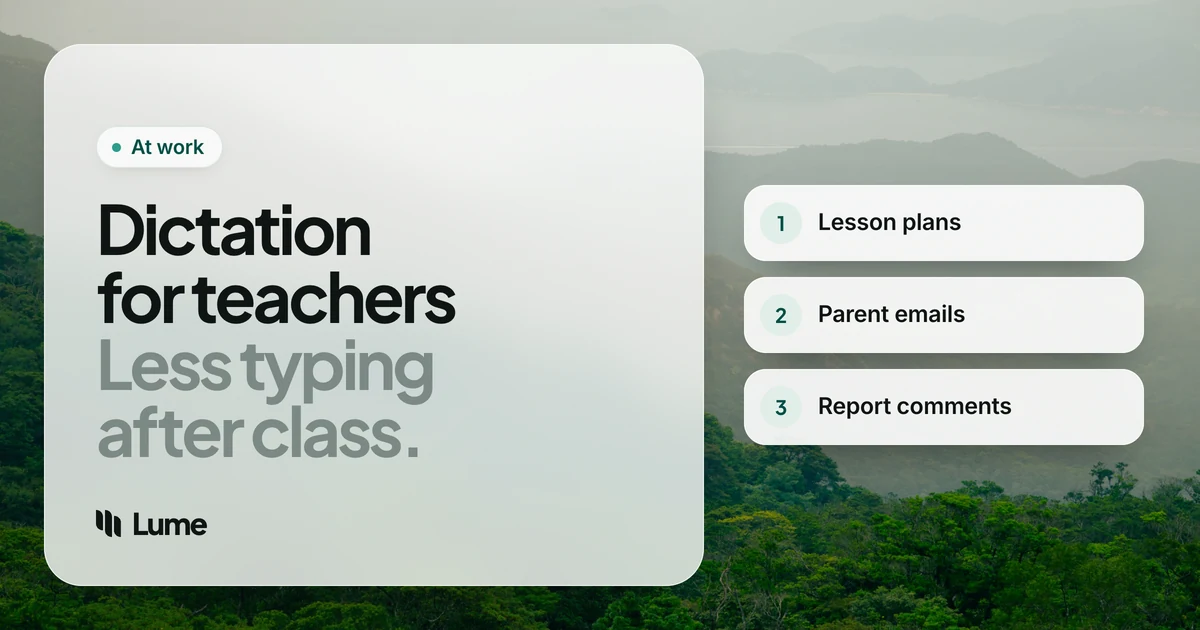
- Lesson and unit plans. Objectives, activities, differentiation notes, materials.
- Parent and guardian emails. Updates, concerns, replies, positive notes home.
- Feedback on student work. Comments on essays, projects and lab reports.
- Report card comments. One per student, per subject, per term.
- Substitute plans. Everything someone else needs to run your day.
- Admin writing. Incident reports, IEP or support plan notes, meeting minutes, grant applications.
Start with what your school gives you#
Google Docs voice typing. Built into Docs, free, and a natural first step in Google schools. Google lists Chrome, Edge and Safari as supported browsers; it only types inside Docs, and its editing commands are English-only. You say punctuation out loud. More in our Google Docs voice typing alternatives guide.
Chrome's talk to type. Gemini-powered dictation in any text box in desktop Chrome, including on ChromeOS. If your school runs on Chromebooks, this and Docs voice typing are your best options.
Word's Dictate. Built into Word and Outlook with a Microsoft 365 subscription, which many schools provide. It has formatting commands, but doesn't remove filler words. See Word dictation alternatives.
Apple Dictation and Windows voice typing. Free, system-wide on your own Mac (or press Windows key + H on Windows). No cleanup and no custom vocabulary, but they work everywhere on the computer.
ChromeOS dictation. Chromebooks have their own dictation feature, useful in apps outside Chrome.
Dictation apps worth paying for#
LumeVoice. AI dictation for Mac, Windows, iPhone and Android, one plan for all four. Hold fn on a Mac or Ctrl + Win on Windows in any app, talk and let go. Filler words and stutters disappear, self-corrections are applied ("Tuesday, actually Wednesday" becomes "Wednesday"), punctuation and paragraphs are added, and spoken lists become numbered or bulleted lists. Snippets type text you repeat, like your classroom website link or your email sign-off. On desktop, add student-facing vocabulary (curriculum terms, the school's name, the name of the reading program) to the custom dictionary. Teachers and students get 50% off Pro: see the students and teachers page. It's cloud-based, needs a connection, and has no ChromeOS app.
Wispr Flow. A similar AI dictation app on the same four platforms. Pro is $15 a month or $144 a year, and its pricing post notes that educators can apply for a discounted Pro rate, as of October 2026 (Wispr Flow pricing). Its team plans add admin controls, which matters if a school wants to manage it centrally.
Superwhisper. Can run on your Mac with local models and no internet connection, which may suit a district that won't allow cloud processing. More settings to learn (pricing).
Teacher writing, by voice#
These examples are illustrative, with invented names. They show what the cleanup does, not a measured result.
Parent emails#
The email you've been putting off is usually easier to say than to type. Open Gmail or Outlook and say it the way you'd say it at pickup.
You say (illustrative): "Hi Ms. Okafor, um, I wanted to share some good news about Ada. She's been, uh, leading her group in our fractions project and her last quiz was her best this term. One thing to work on at home, reading the question twice before answering. Thanks for all your support, sorry, thanks for all you do."
What lands: Hi Ms. Okafor,
I wanted to share some good news about Ada. She's been leading her group in our fractions project, and her last quiz was her best this term.
One thing to work on at home: reading the question twice before answering.
Thanks for all you do.
Read it once before sending. For a difficult conversation, dictate a draft, then step away before editing. That's a habit worth keeping whatever tool you use.
Feedback on student work#
Typed feedback tends to get shorter as the pile gets taller. Spoken feedback tends to stay specific, because explaining is what you do in the classroom. Click into the comment box in your learning platform, or a comment in Google Docs, and talk to the student as if they were at your desk: one thing that worked, one thing to fix, one question to think about.
Report card comments#
The hardest writing of the year, mostly because of the volume. A workflow that helps:
- Before writing, list three observations per student from your gradebook and notes.
- Open your school's comment template or system.
- For each student, look at the observations and talk for half a minute.
- Edit in a second pass, against your school's guidelines.
You say (illustrative): "Leo has grown, um, a lot as a writer this term, especially in organizing his ideas into paragraphs. He contributes thoughtfully to class discussions. Next term, uh, he should focus on, on editing his work for spelling before handing it in."
What lands: Leo has grown a lot as a writer this term, especially in organizing his ideas into paragraphs. He contributes thoughtfully to class discussions. Next term, he should focus on editing his work for spelling before handing it in.
The words, and the judgment, are yours. LumeVoice doesn't invent anything about the student; it tidies what you said.
Lesson plans and sub plans#
For a lesson plan, use hands-free mode (double-press the shortcut) and walk through the lesson in order, as if you were teaching it: the hook, the instruction, the activity, the check for understanding. Then shape it into your template. Substitute plans especially benefit: talk through the day as you'd brief a colleague, and the details you'd forget to type ("Jordan helps with the projector") make it in.
On your phone#
Some of the best ideas come on the walk to the car. On iPhone, switch to the Lume keyboard in your notes app; on Android, tap the Lume bubble over your keyboard (iPhone, Android).
Student data comes first#
Before you dictate anything that identifies a student (names with grades, behavior notes, support plan details, health information), check your school's or district's policy on which tools may handle student data. In the United States, FERPA governs student education records, and many states and districts add their own rules and approved-vendor lists. Elsewhere, your national data protection law and your school's policies apply. Your school decides, not the dictation vendor.
Where the audio goes:
- Google Docs voice typing, Chrome's talk to type and Word's Dictate are cloud services too, but they may already be covered by your school's Google or Microsoft agreement and approved by your district. That's a real advantage.
- Superwhisper's local models keep audio on your Mac.
- LumeVoice and Wispr Flow process audio in the cloud, under their own terms rather than your school's agreement.
LumeVoice sends audio for processing and doesn't store it afterwards; it never uses what you say to train models; your dictation history stays on your device. It needs an internet connection and holds no compliance or education privacy certifications. If your district hasn't approved it, use it for writing without student information (lesson plans, newsletters, your own professional writing) and the approved tools for the rest.
Write the parent email at the speed you talk
LumeVoice turns what you say into clean text in email, Docs, Word and your learning platform on Mac and Windows, with your phone on the same plan. Teachers get 50% off: start with 3,000 free words, no card required, then email us from your school address.
Picking one#
- School runs on Chromebooks: Google Docs voice typing and Chrome's talk to type. LumeVoice doesn't run there.
- School provides Microsoft 365: try Word's Dictate first.
- District forbids cloud tools: Superwhisper's local models on a Mac.
- School wants to manage one tool centrally: Wispr Flow's team plans.
- You write on your own Mac or Windows PC and phone, want clean text everywhere, and your school allows it: LumeVoice, at the teacher rate.