Writing a presentation by voice makes a lot of sense. Slides are what you'll say out loud anyway, and speaker notes are basically a script. PowerPoint has its own Dictate button, and your computer's built-in dictation works in it too.
This guide covers how to dictate in PowerPoint with Microsoft's tool first, from Microsoft's PowerPoint dictation page as of October 2026, then the alternatives, then how to get usable slides out of it.
What you need#
- A microphone. A headset beats a laptop mic in a noisy office.
- An internet connection. Microsoft says Dictate needs "a microphone and reliable internet connection."
- A Microsoft 365 subscription for the Windows desktop app. Microsoft calls it "a subscriber-only feature." PowerPoint for the web needs a Microsoft account and Edge, Firefox or Chrome.
- An editable file. If the presentation is read-only, the button is grayed out.
How to dictate in PowerPoint for the web#
- Sign in to PowerPoint for the web in Edge, Firefox or Chrome.
- On the Home tab, select Dictate (the microphone) in the Voice group.
- Allow microphone access if the browser asks.
- Wait for the button to switch on and start listening.
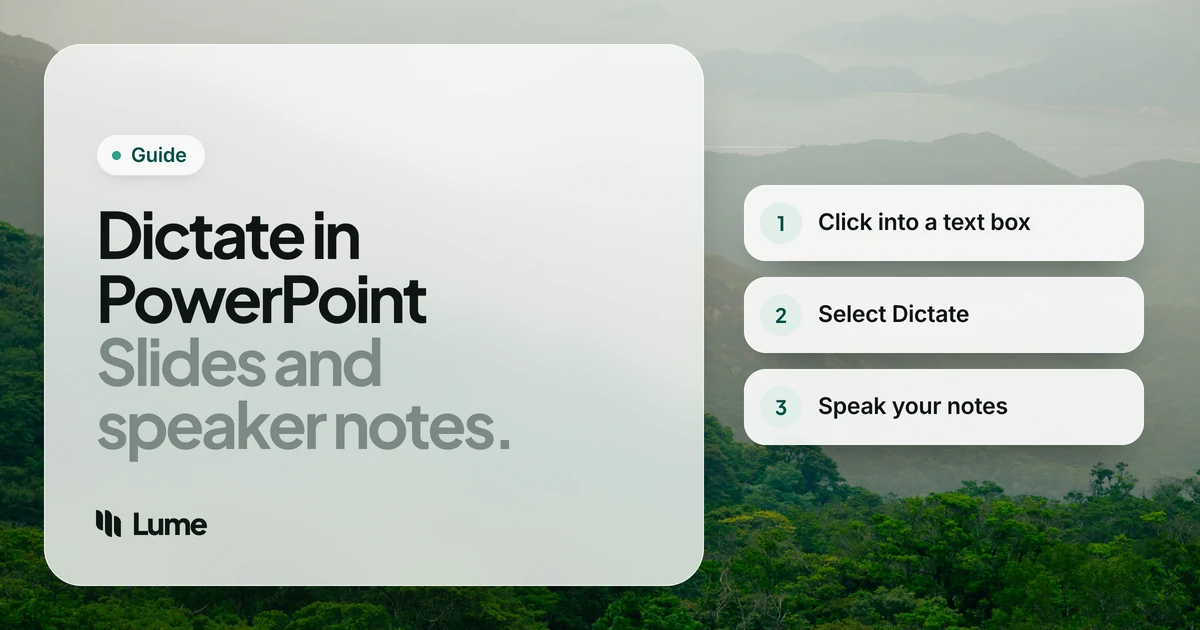
- Click into a placeholder (a title or body box) or the slide notes, and speak.
- Select Dictate again, or say "exit dictation", to stop.
You can fix mistakes with the keyboard without turning the microphone off.
How to dictate in PowerPoint on Windows#
- Open the presentation in PowerPoint for Microsoft 365.
- Go to Home > Dictate. The icon turns red when it's listening.
- Click into a placeholder or the notes pane and talk.
- Select the microphone again to stop.
Microsoft adds a useful tip: place your cursor in a new comment and you can dictate feedback, which is quicker than typing review notes on a colleague's deck.
PowerPoint on a Mac#
Microsoft's Dictate in Microsoft 365 overview lists PowerPoint for Windows and Mac. If your Mac version shows Dictate on the Home tab, the steps are the same as on Windows. If it doesn't, use macOS Dictation: click into the slide or notes, press your Dictation shortcut (set under System Settings > Keyboard), and speak. Our Mac dictation guide covers setup.
Voice commands worth knowing#
Microsoft's PowerPoint page tells you to insert punctuation "by saying them explicitly", so it's worth learning the words. Microsoft lists, in English:
- Punctuation: "period" or "full stop", "comma", "question mark", "exclamation point", "colon", "semicolon", "ellipsis"
- Lines: "new line"
- Symbols: "percent sign", "at sign", "ampersand", "plus sign", "equal sign", "dollar sign", "euro sign"
- Editing: "undo", "delete that", "delete [word]", "delete last [number] words", "backspace", "insert space"
- Control: "pause dictation", "exit dictation", "show help"
If you've left dictation, Microsoft says Alt + ' resumes it.
Languages#
Dictate uses your document language by default. Microsoft's list for PowerPoint includes several English variants (US, UK, Australia, Canada, India), French, German, Italian, Spanish, Portuguese (Brazil), Japanese, Chinese and Hindi, with others in preview. Microsoft notes preview languages may be less accurate or have limited punctuation.
The other built-in route: Win + H#
If you don't have Microsoft 365, or the button is missing, Windows voice typing works in any PowerPoint text box. Click into the box, press Windows key + H, and speak. It adds punctuation automatically if you turn that on in its settings, and on Copilot+ PCs Fluid dictation removes filler words in English. See the Windows voice typing guide.
On a phone or tablet#
PowerPoint on iPhone, iPad and Android doesn't need a special button: tap into a placeholder or the notes so the keyboard opens, then tap the microphone on the keyboard. That's fine for fixing a line in a taxi on the way to a pitch. For building a deck, a computer is far easier, because you can see the slide, the notes and the outline at once.
An example: one spoken paragraph, one slide#
Illustrative example. Say you click into the notes pane and talk through a point:
"So the main thing here is that support tickets dropped after we shipped the new onboarding, about a third fewer in the first month, and most of the drop was in password and login questions, which is exactly what the new flow was meant to fix."
That's your speaker note, more or less as said. The slide itself then needs only:
- Title: Support tickets fell after the new onboarding
- Bullet: Biggest drop: password and login questions
- Bullet: One month of data so far
You talked once and wrote both. The numbers in the note still need checking against your source before you present.
Getting good slides out of dictation#
Talking makes it easy to write too much. A slide that reads like a transcript is a bad slide. Some habits that help:
Dictate the notes, not the slide#
Speak your full explanation into the speaker notes, the way you'd say it in the room. Then write a short headline and three bullets on the slide itself. You get a script for rehearsal and a clean slide, from one pass of talking.
Say the headline as a sentence#
"Revenue grew in every region except the north" is a better slide title than "Revenue". Dictating full-sentence headlines (sometimes called action titles) is quicker than typing them, and the deck tells its story from the titles alone.
Draft the whole deck in one place first#
Some people find it faster to talk the outline into a document, edit it, then paste the pieces into slides. Moving between dozens of placeholders while dictating is fiddly; one long document isn't. Our page on dictating in Microsoft Word covers that half.
Leave formatting to the keyboard#
Dictation writes words. Moving boxes, choosing layouts and adding images are faster with the mouse.
Proofread names and numbers#
Client names, product names and figures are where dictation slips. Read every slide once before it goes on a screen in front of people.
Where the built-in options fall short#
- Verbatim text. Dictate types what you say, false starts included, so you edit afterwards.
- No custom vocabulary. Product and client names that it mishears keep getting misheard.
- Spoken punctuation in Dictate takes some getting used to.
- One app at a time. Dictate lives inside Microsoft 365, so your Keynote or Google Slides work needs something else.
When a dictation app helps#
If you write a lot of decks, notes and follow-up emails, a dictation app that works the same everywhere can be easier than learning each app's tool.
LumeVoice is one option. On a Mac or Windows PC, click into a slide placeholder, the notes pane or a comment, hold fn (Mac) or Ctrl + Win (Windows), talk and let go. The text lands cleaned up: filler words removed, self-corrections applied, punctuation added from context, and spoken lists turned into bullet points, which suits slide bodies well. On Mac and Windows, a custom dictionary passes client and product names to speech recognition so they come out spelled right. It types into PowerPoint, Keynote or Google Slides in a browser alike, and it needs an internet connection. It writes text only; it won't change layouts or run PowerPoint commands. More on the Windows and Mac pages.
Talk through your deck
LumeVoice turns what you say into clean slide text and speaker notes in PowerPoint, Keynote or Google Slides, on Mac and Windows, with iPhone and Android on the same plan. Every new account gets 3,000 free words, no card required.
Quick reference#
- Start Dictate: Home > Dictate (microphone)
- Resume after exiting: Alt + '
- Where to click: a placeholder, the notes pane or a new comment
- Grayed out: the file is read-only, or you're not signed in to Microsoft 365
- Without Microsoft 365: Windows key + H, or Mac Dictation
- Needs: a microphone and an internet connection