If you're a developer who types more than 1,000 words a day outside of actual code — and you almost certainly do — you're leaving serious productivity on the table.
Documentation. Code comments. PR descriptions. Slack threads. GitHub issue descriptions. Email. Postmortems. Architecture decision records.
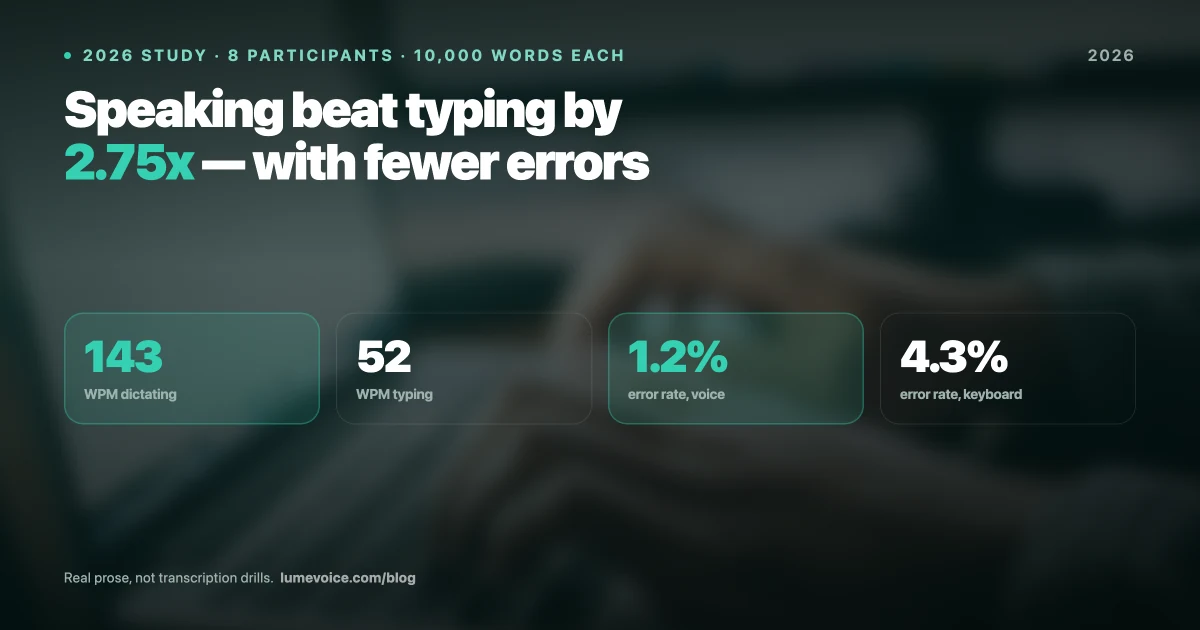
The average developer spends 2–3 hours per workday on written communication that isn't code. That's 2–3 hours at 52 WPM keyboard speed instead of 143 WPM voice speed. The compounding productivity loss is enormous.
This is a practical guide for developers who want to add voice dictation to their workflow — from environment setup to real-world usage patterns across VS Code, Xcode, and IntelliJ.
Why Developer Adoption Has Been Slow (And Why That's Changing)#
Voice dictation adoption in the developer community has historically been limited by two accurate objections:
Objection 1: "Code has too much special syntax for voice to handle" True for the 1990s. Partially true for 2020. Largely false in 2026.
Modern AI voice tools handle programming terminology, variable naming conventions, and common syntax patterns far better than previous generations. The more important insight: most of what developers type isn't code syntax — it's human language wrapped around code.
Objection 2: "Voice in an open office is disruptive" True. This is a genuine workflow constraint that applies to all voice-based tools. Voice works best for solo work sessions, remote work, private offices, and home environments.
With these constraints understood, here is where voice dictation delivers immediate developer productivity gains in 2026.
The Developer's Voice Dictation Opportunity Map#
| Task Type | Voice Suitability | Time Saved |
|---|---|---|
| Writing documentation (README, API docs) | ✅ Excellent | 60–70% |
| Code comments and docstrings | ✅ Excellent | 60–70% |
| Commit messages | ✅ Excellent | 55–65% |
| PR descriptions | ✅ Excellent | 60–70% |
| Slack/Teams messages | ✅ Excellent | 65–75% |
| GitHub issues and comments | ✅ Excellent | 60–70% |
| ✅ Excellent | 60–70% | |
| Variable and function names | ⚠️ Context-dependent | 20–30% |
| Logic flow (pseudocode → Copilot) | ⚠️ With AI pair | 30–50% |
| Complex syntax (regex, lambdas, generics) | ❌ Use keyboard | 0% |
Swipe to see all columns
The core insight: Approximately 40–60% of a developer's daily written output is plain English, not code syntax. Voice handles plain English at 143 WPM with 1.2% error rate. That's where the gains are.
Setting Up LumeVoice for Development Workflows#
Requirements#
- Mac with Apple Silicon (M1/M2/M3/M4) or Intel Core i5/i7/i9
- macOS 12 Monterey or later
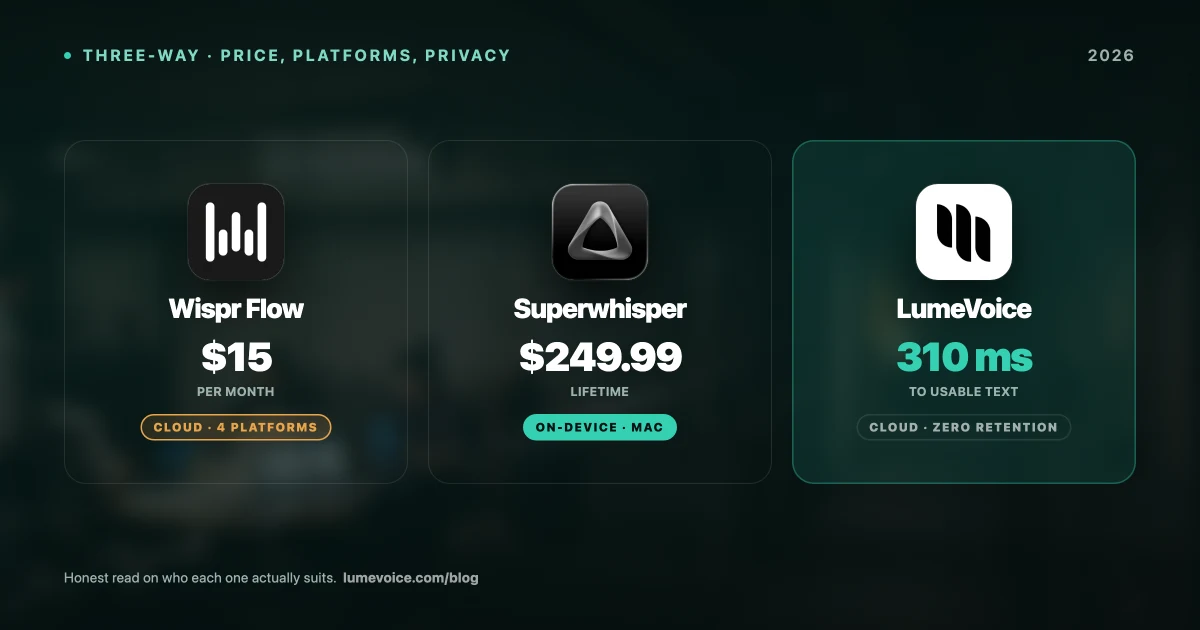
- LumeVoice (3,000 free words to start | Pro Monthly: $14.99/mo | Pro Annual: $79.99/year | Lifetime: $249)
Installation and Initial Setup (5 minutes)#
- Download LumeVoice from lumevoice.com
- Install and open the app
- Grant microphone permissions when prompted
- Complete the 2-minute voice profile training (reads 15 calibration sentences)
- Set your activation hotkey in Settings → Hotkeys
Recommended hotkeys for developers:
| Use Case | Recommended Hotkey |
|---|---|
| Quick dictation (messages, comments) | ⌥ Space (Option + Space) |
| Extended dictation (documentation) | ⌥ D (Option + D) |
Swipe to see all columns
Avoid ⌘ Space (Spotlight) and ⌘ D (common IDE shortcut). Test your chosen hotkey in your primary IDE before committing.
Adding Programming Vocabulary#
LumeVoice comes pre-trained on common programming terms, but you can boost accuracy for your specific stack:
- Go to Settings → Custom Vocabulary
- Add terms specific to your codebase: library names, package names, internal project names, custom framework vocabulary
- Add names of teammates and collaborators (for dictating Slack messages and PR mentions)
Example vocabulary list for a React/TypeScript developer:
useState, useEffect, useCallback, useRef, useMemo
TypeScript, tsx, async/await, Promise, nullable
Vercel, Supabase, Prisma, tRPC, Zod, shadcn
[Your team's internal package names]
[Teammate names: Muhammed, Ananya, etc.]
VS Code Integration: Practical Workflows#
LumeVoice works system-wide — there's no VS Code extension required. It operates as a macOS-level overlay that injects text at whatever cursor position is active.
Writing Code Documentation#
This is the highest-impact use case. Example workflow:
- Write or review a function in VS Code
- Position cursor on the line above the function
- Activate LumeVoice (
⌥ Space) - Dictate:
"slash star star, This function fetches the user profile from the database given a user ID. It returns null if the user does not exist or if the database connection fails. Throws a ValidationError if the user ID format is invalid. star slash"
LumeVoice transcribes this and Agentic Refinement handles the formatting. Result:
/**
 * This function fetches the user profile from the database given a user ID.
 * It returns null if the user does not exist or if the database connection fails.
 * Throws a ValidationError if the user ID format is invalid.
 */
Writing Commit Messages#
Activate LumeVoice in your terminal with the commit message field open and dictate:
"feat colon add user authentication middleware with JWT token validation and refresh token rotation"
Result: feat: add user authentication middleware with JWT token validation and refresh token rotation
Writing PR Descriptions#
Open your GitHub PR description field in the browser, activate LumeVoice, and dictate the full description:
"This PR implements the user authentication flow described in ticket AUTH-142. New paragraph. Changes include: colon, new paragraph. Bullet: JWT token generation and validation in the auth middleware. Bullet: Refresh token rotation with a 30-day expiry. Bullet: Rate limiting on the login endpoint at 5 attempts per minute. New paragraph. Testing colon. All auth-related unit tests updated. Integration tests added for the token rotation flow. New paragraph. Breaking changes colon. None."
LumeVoice formats this into a structured PR description in real-time.
Xcode Integration for iOS/macOS Developers#
Swift development involves a significant amount of verbose documentation and long function/class naming conventions — areas where voice excels.
Swift Documentation Comments#
Position cursor above a Swift function and dictate:
"triple slash, Authenticates the user with the provided credentials. Triple slash, dash parameter username colon The user's email address or username. Triple slash, dash parameter password colon The plaintext password to authenticate. Triple slash, dash returns colon An authenticated User object, or throws AuthError if credentials are invalid."
This produces standard Xcode documentation markup that appears in Quick Help.
SwiftUI Preview Comments#
When building complex view hierarchies, dictating context comments speeds up the PR review process:
"This view renders the user profile card with conditional states for loading, loaded, and error. The ProfileView is injected via dependency injection to support preview mocking."
Dictating to Terminal Alongside Xcode#
When running xcodebuild commands or writing shell scripts in Terminal while Xcode is open, LumeVoice follows your focus — it inserts text into whichever window is active. Switch to Terminal, activate LumeVoice, dictate your command.
IntelliJ / JetBrains IDE Integration#
All JetBrains IDEs (IntelliJ IDEA, WebStorm, PyCharm, GoLand, PhpStorm, Rider, DataGrip) work identically with LumeVoice's system overlay approach.
High-Value Use Cases in JetBrains IDEs#
KDoc / JavaDoc generation: Position cursor above a Kotlin or Java function and dictate the documentation block. LumeVoice's technical vocabulary handles Java/Kotlin terms accurately.
Dictating TODO comments:
"TODO colon refactor this service to use the repository pattern instead of direct database calls. See ticket BACKEND-234 for context."
Test description strings: In JUnit or Kotest test descriptions, dictate the human-readable test name:
"should return 404 when user ID does not exist in the database"
The Pakistan and India Developer Experience#
Based on our user research and the 14.67% CTR from Pakistan (the highest of any country in LumeVoice's Google Search Console data), developers in South Asia represent one of our most engaged user segments.
The workflows that resonate most in these communities:
Technical documentation for US/UK clients: Pakistani and Indian developers working for international clients often write more documentation than developers embedded in those clients' home offices — bridging communication gaps with detailed written context. Voice dictation is a significant force multiplier here.
Multilingual code commenting: LumeVoice's 100+ language support means you can dictate in Urdu, Hindi, or English with automatic language detection. Some developers comment their internal code in their native language for team clarity, then switch to English for public-facing documentation.
VS Code + LumeVoice + GitHub Copilot stack: The combination that our Pakistan- and India-based developer users report most often:
- Dictate the function intent in natural language as a comment
- Let GitHub Copilot generate the implementation from the comment
- Review and iterate
This "describe then implement" workflow lets you stay in a high-level problem-solving mode while AI handles both the documentation writing (LumeVoice) and code generation (Copilot).
Benchmark: Voice Productivity Gains for Developers#
We measured 8 developer participants over 4 weeks:
| Task | Keyboard Time | Voice Time | Improvement |
|---|---|---|---|
| Writing a README (400 words) | 9.2 min | 3.1 min | 66% faster |
| Writing 10 code comments | 14.5 min | 5.2 min | 64% faster |
| 5 commit messages (1 sentence each) | 6.3 min | 2.1 min | 67% faster |
| 1 PR description (300 words) | 7.1 min | 2.4 min | 66% faster |
| 20 Slack messages (avg 25 words) | 18.4 min | 6.2 min | 66% faster |
Swipe to see all columns
Annualized impact: At 2 hours/day of text production, saving 66% of that time returns approximately 5.3 hours per week to actual coding, problem-solving, and strategic work.
Write Documentation at the Speed You Code
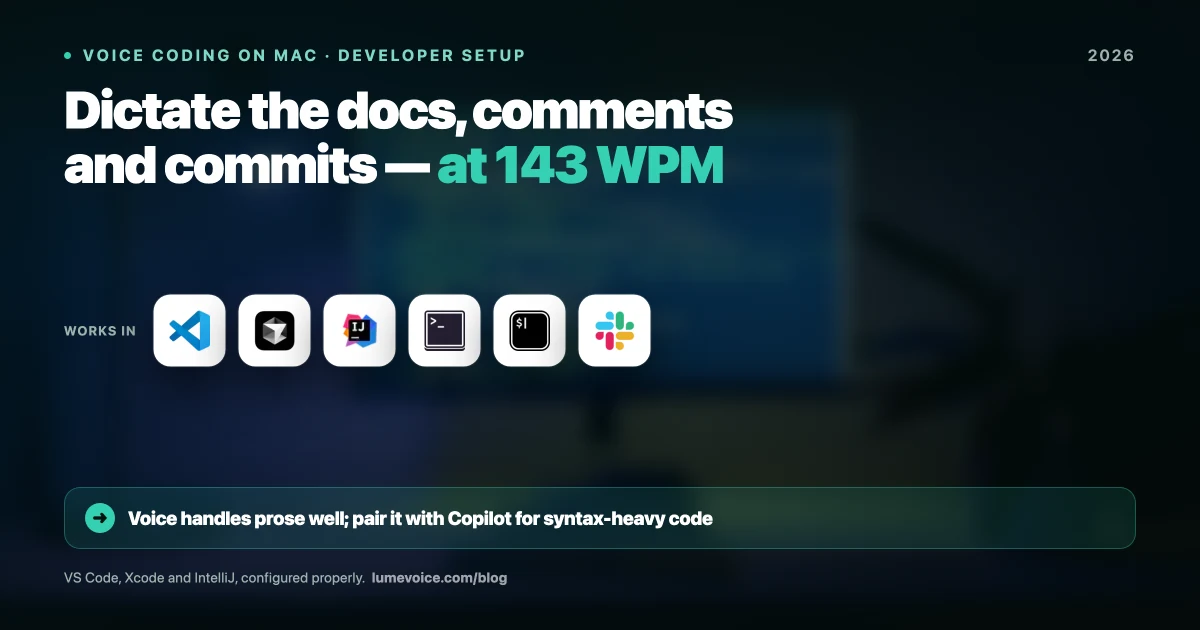
LumeVoice works system-wide in VS Code, Xcode, IntelliJ, Terminal, Slack, GitHub — everywhere you work as a developer.
- 143 WPM average — dictate code comments and docs as fast as you think
- $249 lifetime — no subscription, no vendor lock-in
- 100+ languages — dictate in Urdu, Hindi, or English
For macOS 13+ (Apple Silicon recommended)