An audio to text converter takes a recording and gives you back the words. It sounds simple, and for a clean recording of one person talking it mostly is. But the same tool that nails a voice memo can stumble on a noisy meeting, and the free website that converted your file may have kept a copy of it.
This guide explains what happens between upload and transcript, which file formats work, what decides accuracy, and how to think about free tools and privacy. If you just want a list of tools, see our best transcription software roundup.
What a converter actually does#
Almost every converter follows the same basic steps, whatever the brand.
1. Decode the file#
Your recording is a compressed file: mp3, m4a, ogg and so on. The converter decodes it into raw audio, usually mixed down to one channel at a fixed sample rate the speech model expects. If you upload a video, it pulls out the audio track and ignores the picture.
2. Prepare and split the audio#
Speech models work on short windows of audio, so long recordings are cut into chunks, ideally at pauses. Some tools also detect where nobody is speaking and skip it, and some reduce background noise first.
3. Recognize the speech#
This is the core. A speech recognition model, trained on very large amounts of recorded speech and matching text, listens to each chunk and predicts the most likely words. Modern models such as OpenAI's open Whisper family do this in one network and can handle many languages, often detecting the language on their own.
The key word is predicts. The model picks the most probable words given the sound and the context. When the sound is unclear, it guesses, and a confident wrong guess looks exactly like a right one on the page.
4. Add structure#
Raw recognition gives a stream of words. Converters then add some of:
- Punctuation and capitals, so it reads as sentences.
- Timestamps, linking each phrase to its point in the audio.
- Speaker labels ("Speaker 1", "Speaker 2"), from a separate step called diarization that groups voices.
- Subtitle files (SRT, VTT) for video.
5. Optional clean-up#
Newer tools run a language model over the transcript to remove filler words, fix grammar, summarize, or turn a ramble into readable paragraphs. That's useful for your own notes, and wrong for anything that must be word for word, such as a quote or evidence.
Where the work happens: your computer or theirs#
Every converter does the steps above either on your own device or on a server.
- On your computer. Apps such as MacWhisper (Mac) and Buzz (free, Mac, Windows and Linux) download a model and run it on your machine. The audio never needs to be uploaded. Speed depends on your hardware, and bigger, more accurate models need more of it.
- In the cloud. Websites and services upload your file and run it on their servers. They're often faster on a modest laptop, they work from a phone, and they can offer extras like summaries and team sharing. But your audio leaves your hands.
Neither is better in general. It depends on what's in the recording.
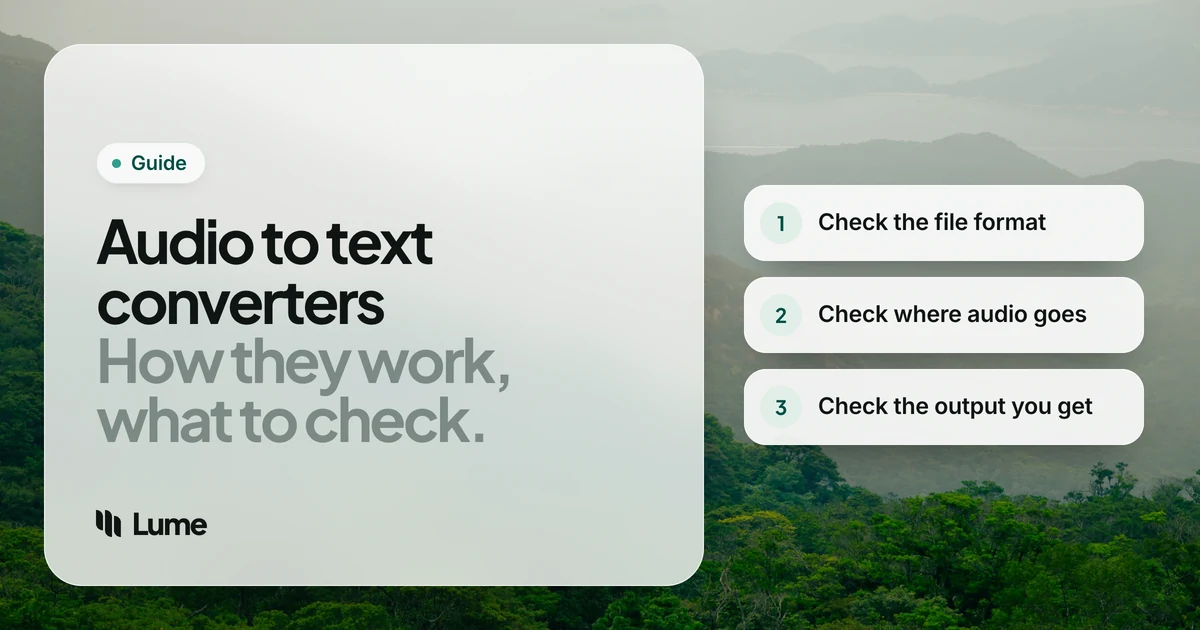
File formats#
Most converters accept the common formats:
| Format | Where you'll see it |
|---|---|
| mp3 | Podcasts, older recorders, most downloads |
| m4a / aac | iPhone Voice Memos, many phone recorders |
| wav / aiff | Professional recorders, uncompressed audio |
| flac | Lossless archives |
| ogg / opus | Messaging-app voice notes, some Android recorders |
| mp4 / mov / webm | Video; the converter uses the audio track |
Swipe to see all columns
If a tool rejects your file, convert it to mp3 or wav with a free audio editor and try again. Compression rarely hurts transcription at normal quality; a bad microphone hurts it far more.
What decides accuracy#
There's no single accuracy figure for a converter, because the recording matters more than the software. Roughly in order of impact:
- Distance from the microphone. A phone in a pocket or across a table picks up the room. A mic near the mouth picks up the voice.
- Background noise. Cafés, traffic, air conditioning and keyboard clatter all compete with speech.
- Overlapping speakers. When people talk over each other, both get worse, and speaker labels get muddled.
- Accents and languages. Models are better at the languages and accents they saw most in training.
- Names and jargon. A model has never heard your client's surname or your internal product code. Some tools let you add a vocabulary or a prompt; we explain how that works in custom vocabulary for dictation.
- Model size. Bigger models are generally more accurate and slower. Local apps often let you choose.
Treat any published accuracy percentage with care. It was measured on someone else's audio, and yours is different.
Free vs paid#
Free is genuinely good now, thanks to open models:
- Local apps like Buzz cost nothing and have no minute limits, if your computer is up to it.
- Built-in tools transcribe your own recordings: Voice Memos on iPhone and Mac, Recorder on Pixel. See how to transcribe voice memos.
- Free tiers of cloud services work for occasional use but cap minutes per month, minutes per file, or the number of uploads.
- Free websites with no account are the ones to be most careful with. Check who runs them and what they do with your file.
Paid tools earn their price with convenience and extras: speaker labels that work, team sharing, meeting bots, editing audio by editing text, and human transcription where a person checks every line. If your recordings are legal, medical, research or for publication, human review is worth budgeting for.
Privacy: what happens to your upload#
Before you upload a recording to any online converter, find answers to four questions in its privacy policy or terms:
- Is the file stored, and for how long after processing?
- Who can access it: staff, contractors, sub-processors?
- Is it used to train models? Some services do by default unless you opt out.
- Where is it processed, if your organization has rules about that?
Then think about who's on the recording. A memo of your own ideas is your call. An interview, a patient, a client or a colleague is not only yours to upload. Get consent before recording people, follow your organization's rules, and use a local tool when in doubt.
Converter, transcriber or dictation app?#
These overlap, so it helps to name the job:
- Converter / transcriber: a recording exists; you want text. Speaker labels and timestamps matter for interviews and meetings.
- Dictation app: nothing's recorded yet; you want your words typed into an email or document as you speak. See best talk-to-text apps.
LumeVoice is mainly a dictation app, and its Mac and Windows apps also convert files: mp3, m4a, wav, aac, aiff, flac and ogg audio, and mp4, mov and m4v video (Windows also wma, wmv and webm). Open a file from the menu bar or tray, Finder's Open With or Explorer's right-click menu, and you get cleaned-up prose, with filler words removed, self-corrections applied and paragraphs added, copied to your clipboard and saved in your history.
It's a good fit for memos, recorded brain dumps and talks you gave yourself. It's the wrong fit for meetings, interviews or captions, since it doesn't produce speaker labels, timestamps or subtitle files. It's desktop-only and cloud-based: audio is sent for processing, isn't stored afterwards, and isn't used to train models. If a recording must never leave your computer, use a local app instead.
From recording to readable draft
LumeVoice converts audio files into clean text on Mac and Windows, and types what you say into any app on all four platforms. Every new account gets 3,000 free words, no card required.
A checklist before you convert#
- Record close to the speaker, in a quiet room.
- Use a format the tool accepts (mp3, m4a or wav are safe bets).
- Decide whether the audio may leave your computer.
- Choose verbatim or cleaned-up text, depending on what it's for.
- Add names and jargon where the tool allows.
- Check names, numbers and quotes against the audio.
- Keep the original until you're done.