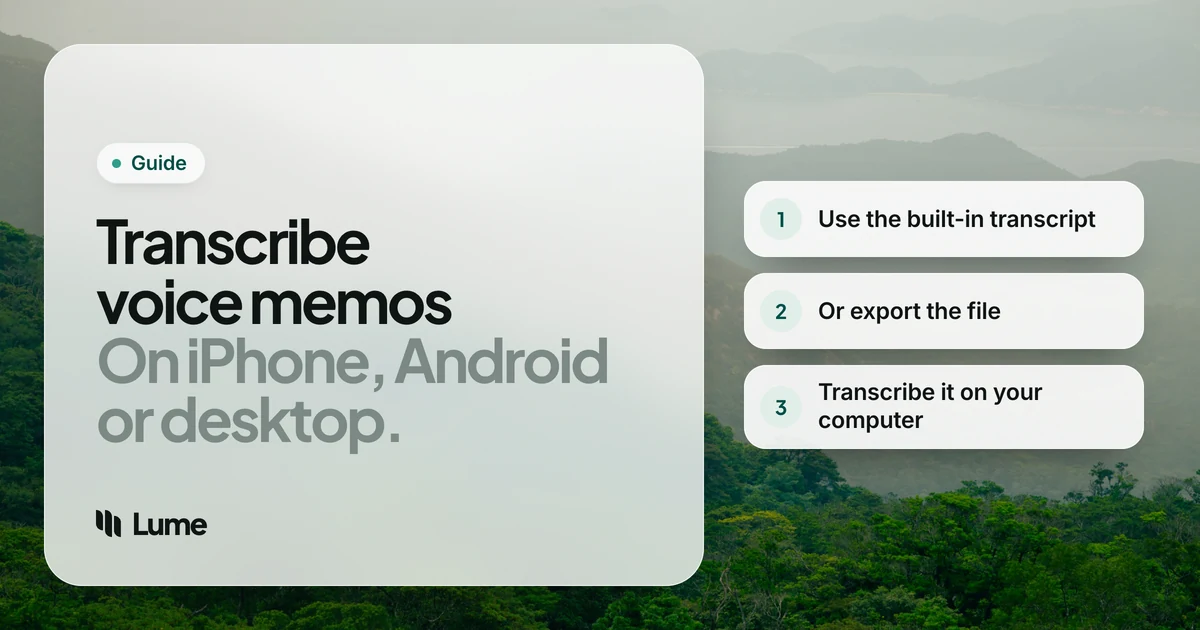
Voice memos are the fastest way to catch an idea: hit record, talk, put the phone away. Getting the words back out is the part people get stuck on. The good news is that most phones can now transcribe voice memos themselves, and when they can't, a computer can.
Below are the built-in options first, with requirements from Apple's and Google's own help pages as of October 2026, then desktop tools for files your phone can't handle.
On iPhone: Voice Memos transcripts#
Apple's Voice Memos app transcribes recordings. According to Apple's guide, View a Voice Memos transcription on iPhone:
See it live while recording#
Swipe up from the waveform and tap the Transcription button. The text appears as you talk. Tap the button again to go back to the waveform.
Copy a transcript afterwards#
- Open the recording in Voice Memos.
- Tap the More button.
- Choose View Transcript to read it and copy part of it, or Copy Transcript to copy the whole thing.
- Paste it into Notes, an email or a document.
Search your memos by what you said#
The search field matches transcript text as well as titles, and tapping a match moves playback to that point. That alone makes old memos far more useful.
Requirements#
- iPhone 12 or later.
- Supported languages: Apple lists English, Spanish, Portuguese, Italian, French, German, Japanese, Korean, and Simplified and Traditional Chinese.
- Country or region: it isn't available everywhere.
- Old memos: Apple says recordings made in iOS 17 or earlier are transcribed automatically if they contain speech.
The transcript is a plain record of what you said. Expect "um", false starts and run-on sentences in a memo you recorded while walking.
On a Mac: Voice Memos too#
Voice Memos on the Mac can show transcripts as well. Apple's Voice Memos guide for Mac says it needs macOS 15 or later and a Mac with Apple silicon, and availability depends on language and region. Memos synced through iCloud show up on the Mac, so a recording from your phone can be transcribed and copied at your desk.
On Android: Pixel Recorder and other recorders#
Google Pixel: Recorder#
Pixel phones come with Google's Recorder app, which transcribes while you record. Google's help page, Create, edit & manage transcriptions, lists:
- Live transcription in a smaller set of languages on Pixel 3 to 5a, and more (including Spanish, Italian, Hindi and Mandarin Chinese) on Pixel 6 and later.
- Re-transcribe for saved recordings, covering many more languages. Google notes this may process the audio on its servers.
- Speaker labels on Pixel 6 and later, in US English only.
- Summaries on Pixel 8 and later, in a handful of languages.
You can edit the transcript in Recorder, search it, and share or export the text.
Samsung and other Android phones#
Many Android phones have their own recorder app, and some offer a transcript option; the features depend on the model and software version, so check your phone's recorder menu. If yours doesn't, share the audio file to a transcription app, or send it to your computer.
If the transcript doesn't appear#
If Voice Memos or Recorder isn't showing a transcript, work through these before reaching for another app:
- Check the device. On iPhone, Apple lists an iPhone 12 or later; on a Mac, Apple silicon and macOS 15 or later. Older devices simply don't offer it.
- Update the software. Transcription arrived in a recent version of each app, so an out-of-date phone may not have it at all.
- Check the language. A memo in a language the app doesn't support won't be transcribed. On Pixel, Recorder's re-transcribe option covers more languages than live transcription.
- Check your region. Apple says transcripts aren't available in every country or region.
- Give it a moment. Older recordings are transcribed in the background, and a long memo can take a little while.
- Listen to the recording. If the audio is mostly wind or room noise, there may not be much speech to find.
If none of that helps, the file itself is still fine: export it and transcribe it on a computer.
On a computer: transcribe the audio file#
Sometimes the phone route doesn't work: the language isn't supported, the phone is too old, the memo came from someone else, or you need the text on a Windows PC. Then transcribe the file on your computer.
- Get the file off your phone. From Voice Memos, use Share > Save to Files, AirDrop it to a Mac, or email it to yourself. On Android, share the recording to Google Drive or copy it over USB. iPhone memos are usually m4a files.
- Pick a tool. The main choices:
- Local apps such as MacWhisper (Mac) or Buzz (free, Mac, Windows and Linux) run Whisper models on your own computer, so the audio isn't uploaded. Good for anything sensitive.
- Cloud services such as Otter, Rev or Descript upload the file and return a transcript, often with speaker labels and timestamps.
- Transcribe in Word handles uploaded recordings if you have Microsoft 365.
- Check the result against the audio for names and numbers.
Our best transcription software roundup compares these, with prices and limits.
Transcript or draft? Know what you want#
A transcript keeps everything you said. That's right for an interview or a quote. For your own memos, it often isn't what you want: you were thinking out loud, and what you need is the idea written up cleanly.
That's the gap LumeVoice fills on a computer. The Mac and Windows apps transcribe audio files, including m4a, mp3, wav, aac, aiff, flac and ogg, and video files such as mp4 and mov (Windows also reads wma, wmv and webm). Open a memo from the menu bar or tray, with Finder's Open With, or from Explorer's right-click menu. The text comes back cleaned up the same way LumeVoice dictation is: filler words and stutters removed, self-corrections applied, punctuation and paragraph breaks added, spoken lists turned into lists. It's copied to your clipboard and saved in your history.
Be clear about what it isn't:
- No speaker labels, timestamps or subtitle files. For interviews or meetings, use a transcription tool.
- Desktop only. The iPhone and Android apps are for dictation, not files.
- Cloud-based. It needs a connection; audio is sent for processing, isn't stored afterwards, and isn't used to train models. If a recording must never leave your computer, use a local app such as MacWhisper or Buzz.
And if you're recording memos only to type them up later, you can skip the step: dictate straight into the document with LumeVoice on iPhone, Android or your computer.
Turn a voice memo into a clean draft
Open a recording in LumeVoice on Mac or Windows and get readable text, not a raw transcript. Dictation on iPhone and Android is on the same plan, and every new account gets 3,000 free words, no card required.
Tips for memos that transcribe well#
- Hold the phone close, or use earbuds with a mic. Distance and wind hurt every transcription tool.
- Say names clearly and spell unusual ones the first time ("Ankita, A-N-K-I-T-A").
- One idea per memo makes them easier to find and file later.
- Name the memo right away. A title like "Pricing email idea" beats "New Recording 42".
- Pause between thoughts. A short silence gives the transcript a natural place for a full stop or a new paragraph.
- Record somewhere quiet when you can. A parked car, a small furnished room or a closet full of clothes absorbs echo better than a bare kitchen.
- Keep the audio until you've checked the text.
- Ask first before recording anyone else. Consent rules vary by country and state.