"Voice note" means different things to different people. For some it's the voice message a friend sent on WhatsApp. For others it's a memo they recorded to themselves, or a note in an app built for capturing ideas by voice. The way you turn voice notes to text depends on which one you've got.
This guide covers each: messaging apps first, then your phone's recorder, then dedicated voice-note apps, then files on your computer. Features and limits are from each vendor's own pages as of October 2026, where we could check them.
Voice messages in WhatsApp#
WhatsApp has built-in voice message transcripts. It's off by default.
Turn it on#
- Open WhatsApp Settings > Chats.
- Turn on Voice message transcripts.
- Choose the transcript language, the one you receive most.
Transcribe a message#
Long-press a voice message and tap Transcribe. The text appears under the message. It doesn't transcribe every message automatically; you ask for the ones you want.
What to know#
- Languages differ by platform. Android and iPhone support different sets, and iPhone support depends on your iOS version. WhatsApp's Help Center article on transcripts has the current list.
- Privacy. When it launched the feature in November 2024, WhatsApp said transcripts are generated on your device, so the voice message stays end-to-end encrypted.
- Wrong language, no transcript. If the message is in a different language from the one you chose, you'll typically get "transcript unavailable". Change the language in Settings > Chats.
Voice messages in Telegram#
Telegram has a voice-to-text button on voice and video messages. Tap it and the transcript appears under the message.
- Telegram Premium includes unlimited voice-to-text.
- Free accounts have had a small weekly allowance of transcriptions since late 2023. Telegram has changed the details over time, so check what your app offers.
Other messaging apps#
Many chat apps have added transcripts, and the options change often. If yours doesn't, you can usually save or forward the audio file and transcribe it on a computer (see below). Before you do, consider whose voice it is: a message someone sent you privately shouldn't be uploaded to a service they haven't agreed to.
Getting a voice message out of the app#
To transcribe a voice message somewhere else, you first need the audio file. The steps differ by app and phone, but the usual routes are:
- WhatsApp: long-press the voice message and use Forward or Share to send it to another app, such as Files, Google Drive or an email to yourself. On a computer, WhatsApp's desktop app can usually save media from a chat.
- Telegram: long-press or right-click the message to save or forward it. The Telegram desktop app can save the file straight to your computer.
- Your phone's recorder: use the app's share button and pick where to send it.
Keep the original until you've checked the text, and delete copies you no longer need, especially of messages other people sent you.
Voice notes you record yourself#
For your own memos, your phone probably transcribes already.
- iPhone and Mac: Apple's Voice Memos shows a transcript live and afterwards, with search across transcripts. Apple says it needs an iPhone 12 or later, or a Mac with Apple silicon on macOS 15 or later, in supported languages and regions.
- Pixel phones: Google's Recorder transcribes as you record, can re-transcribe saved recordings in many languages, and adds speaker labels in US English on newer Pixels.
- Other Android phones: check your recorder app's menu; some include a transcript option.
Our guide to transcribing voice memos has the full steps and requirements for each.
Voice-note apps#
Some apps exist just for voice notes. They record, transcribe, and then organize: tags, summaries, AI questions across everything you've said, or a tidy transcript in your inbox.
- Voicenotes keeps your notes in a searchable library you can ask questions about, with a free plan that limits weekly transcription minutes (as of October 2026). See LumeVoice vs Voicenotes for how it differs from a dictation app.
- Whisper Memos records on iPhone or Apple Watch and emails you a cleaned-up transcript of each memo. See LumeVoice vs Whisper Memos.
- Just Press Record is a one-time-purchase recorder for iPhone, iPad, Mac and Apple Watch that also transcribes. See LumeVoice vs Just Press Record.
These are the right choice if the notes themselves are the point, and you want to find and reuse them later.
Voice notes on your computer#
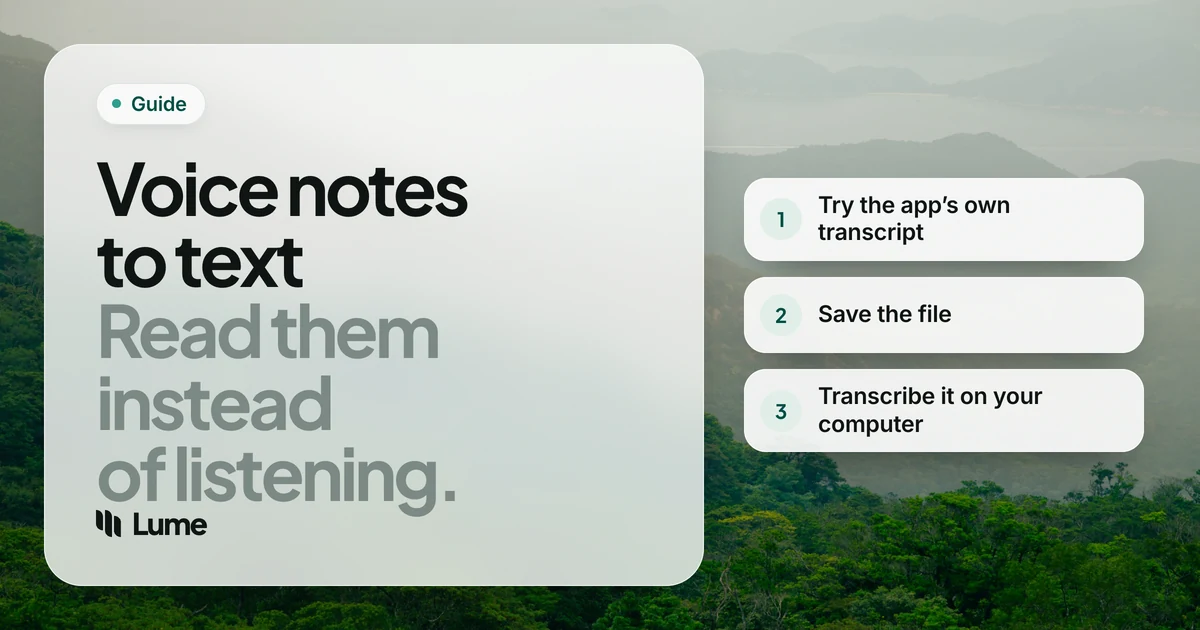
When the voice note is just an audio file (a forwarded message, an export from your recorder, a memo from someone else), transcribe it on a computer:
- Save the file. WhatsApp and Telegram both let you share or export voice messages; messaging voice notes are often in ogg or opus format. Phone recorders usually save m4a. Check your tool accepts the format before you start.
- Open it in a transcription tool. Local apps such as MacWhisper (Mac) or Buzz (free, Mac, Windows and Linux) don't upload the audio. Cloud services such as Otter or Descript do, and add speaker labels and timestamps.
- Check names and numbers against the audio.
Our best transcription software roundup compares the main tools, and how audio to text converters work explains formats and accuracy.
Where LumeVoice fits#
LumeVoice is a dictation app, but its Mac and Windows apps also transcribe files: ogg, m4a, mp3, wav, aac, aiff and flac audio, and mp4, mov and m4v video (Windows also wma, wmv and webm). Open a voice note from the menu bar or tray, Finder's Open With or Explorer's right-click menu. Opus isn't on that published list, so if a .opus voice message won't open, convert it to m4a or mp3 first. You get cleaned-up text, with filler words removed and punctuation and paragraphs added, copied to your clipboard and saved in your history.
It gives you prose, not a record: no speaker labels or timestamps. It's desktop-only (the phone apps don't transcribe files), and it's cloud-based, so audio is sent for processing; it isn't stored afterwards or used to train models.
Or skip the voice note#
A lot of voice notes exist only because typing on a phone is slow: you record now and type it up later. If the note is going to end up in an email, a message or a document anyway, you can speak it straight there.
That's what LumeVoice is for. On iPhone, switch to the Lume keyboard in any app, tap Start Lume and talk. On Android, tap the floating bubble over your keyboard. On a Mac, hold fn; on Windows, hold Ctrl + Win. Your words arrive as clean, punctuated text in the app you're in, with self-corrections applied and spoken lists formatted. Replying to a long WhatsApp message by voice, as text, is a good example. More on the iPhone and Android pages.
Say it, send it as text
LumeVoice types clean, punctuated text into WhatsApp, email or any app on iPhone, Android, Mac and Windows, and transcribes saved voice notes on your computer. Every new account gets 3,000 free words, no card required.
Which route to take#
- A WhatsApp voice message you'd rather read: turn on transcripts in Settings > Chats.
- A Telegram voice message: the voice-to-text button; Premium for unlimited use.
- Your own memo on iPhone, Mac or Pixel: the built-in transcript.
- A library of ideas you'll search later: a voice-note app such as Voicenotes.
- A file on your computer that must stay private: a local transcription app.
- A file you want as a clean draft: LumeVoice on Mac or Windows.
- Text you were going to type anyway: dictate it instead of recording it.
Whichever route you take, read the text once before you act on it. Names, times and numbers are where every transcript slips, and a voice message that says "Thursday at four" is worth getting right.