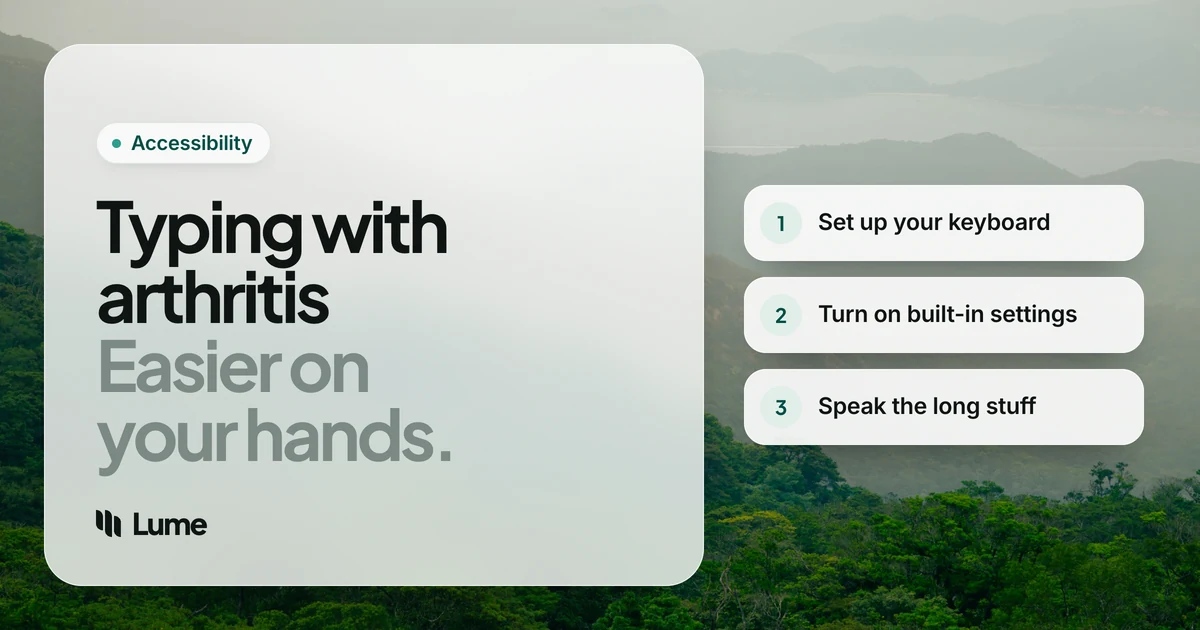
Typing with arthritis often means stiff mornings, sore finger joints after a long email, and a phone keyboard that feels smaller every month. You can't change the diagnosis with a new keyboard, but you can change how much work each sentence asks of your hands. This guide covers the keyboard setup, the aids worth trying, the accessibility settings already on your computer and phone, and where voice typing fits.
This isn't medical advice. Health sources are linked throughout and were checked as of October 2026. If your symptoms are new, changing or getting worse, talk to your doctor.
If you already know you want to dictate and just need the setup, our dictation guide for arthritis walks through it step by step. This post is about everything around it.
Why typing gets hard with arthritis#
The two types that most often reach the keyboard behave differently. Osteoarthritis commonly affects the joints at the ends of the fingers and the base of the thumb, and tends to hurt with use (NIAMS). Rheumatoid arthritis often affects the hands and wrists on both sides of the body, with morning stiffness that can last longer than 30 minutes (NIAMS).
Typing involves exactly the movements those joints dislike: small, repeated finger bends, thumb presses on the space bar, and pinched combinations like Ctrl + C. So the aim is simple: fewer keystrokes, less force per keystroke, and no awkward chords.
Set up the keyboard you already have#
Before buying anything, adjust what's on your desk.
- Height first. Keep your hands at or slightly below elbow level, with your shoulders relaxed (Mayo Clinic office ergonomics). A keyboard that sits too high makes you lift your wrists and shrug.
- Straight wrists. OSHA's workstation guide recommends keeping wrists in a neutral, straight position rather than bent up, down or to the side (OSHA). If your keyboard has fold-out feet at the back, try it flat.
- Laptop at a desk? Mayo Clinic suggests an external keyboard and mouse with the laptop raised on a stand, so your screen and hands aren't fighting for the same height.
- Light touch. Press keys only as hard as you need to. A keyboard with short, light key travel can mean less force per letter.
- Move often. The Arthritis Foundation's office ergonomics advice points out that holding one position for a long time is a bigger problem than sitting itself.
Ergonomic aids worth trying#
The Arthritis Foundation includes an ergonomic keyboard and mouse, and a wrist rest you don't press into, in its advice on adapting your workplace. Some honest notes before you spend money:
- Split and tented keyboards can let your wrists sit straighter. OSHA says alternative keyboards help with neutral posture, but the research hasn't shown that they prevent discomfort or injury. Try one before you commit if you can.
- Wrist and palm rests are for pauses, not for anchoring your wrists while you type. Leaning hard on one puts pressure on the underside of the wrist.
- A different mouse. A larger mouse you can hold with a relaxed hand, a vertical mouse or a trackball may suit you better than a small, flat mouse. What works is personal, so borrow before you buy.
- Phone stands and styluses. On a phone, a stand means you aren't gripping the device while your thumbs type, and a thick-barrelled stylus can be easier than a fingertip on bad days.
An occupational therapist can look at how you work and suggest equipment that fits your hands, which is far better than guessing from product reviews.
Built-in accessibility settings you may not know about#
Your computer and phone already have settings designed for people who find some key presses hard. They're free and take a minute to turn on.
On a Mac. In System Settings, open Accessibility, then Keyboard (Apple Support):
- Sticky Keys lets you press modifier keys one at a time. Instead of holding Command and C together, you tap Command, then C.
- Slow Keys adds a delay before a key press counts, which helps if you sometimes brush keys by accident.
On Windows 10 and 11. Open Settings > Accessibility > Keyboard (Microsoft Support):
- Sticky keys works the same way, and pressing Shift five times turns it on or off.
- Filter keys ignores brief or repeated keystrokes, so a shaky or slow press doesn't turn into "ttthe".
On iPhone and Android. Turn on text replacement or keyboard shortcuts for phrases you type often, and use the one-handed keyboard if one hand is better than the other. On iPhone, touch and hold the emoji or globe key and pick a left- or right-handed layout (Apple Support).
Voice typing: let your hands rest for the long stuff#
The biggest change most people can make is moving long writing from fingers to voice. The Arthritis Foundation names voice recognition software in its workplace advice for exactly this reason. Speaking doesn't treat arthritis, but it can reduce how much you type: a reply that would take a few hundred keystrokes becomes a few seconds of talking and one or two presses.
Start with what's free and already on your devices:
- Apple Dictation on Mac and iPhone. On iPhone, tap the microphone on the keyboard (Apple Support); on a Mac, press the Microphone key or the dictation shortcut (Apple Support).
- Windows voice typing. Press Windows key + H (Microsoft Support). It needs an internet connection.
- Gboard voice typing on Android. Tap the microphone above the keyboard (Gboard Help).
- Voice Control and Voice Access. If the mouse is harder than the keyboard, Voice Control on Mac and iPhone and Voice Access on Windows 11 and Android let you click, scroll and open apps by voice. Dictation apps, ours included, only write text.
Many people find built-in dictation is all they need. Where it can fall short is cleanup: you may say "um" and get "um", or spend time adding commas and fixing restarts by hand, and every fix is more typing.
LumeVoice is our app, so weigh this accordingly. It types into whatever app you're using on Mac, Windows, iPhone and Android, and removes filler words, applies your self-corrections ("Tuesday, actually Wednesday" becomes "Wednesday") and adds punctuation before the text appears. You still start it with a press or a tap:
- Mac: hold fn, talk, let go. Or double-press fn to keep talking without holding anything, and press once to finish.
- Windows: hold Ctrl + Win, or double-press it for hands-free mode. If pressing two keys together is the hard part, choose a single key such as Right Ctrl or an F-key in Settings.
- iPhone: switch to the Lume keyboard and tap Start Lume. Android: tap the floating bubble over your usual keyboard.
The full arthritis setup, including a routine for stiff mornings and flare days, is on our arthritis page.
Type Less on Stiff Days
LumeVoice turns what you say into clean, punctuated text in any app on Mac, Windows, iPhone and Android.
- Less holding: double-press the shortcut on your computer and talk for as long as you like, then press once to finish.
- Less fixing: filler words, restarts and missing punctuation are handled before the text appears.
- 50% off Pro for anyone who finds typing hard, no proof needed. Email hello@lumevoice.com.
- Start free: 3,000 free words, no card required.
Plan your typing around your hands#
Arthritis rarely feels the same all day, so plan the work, not just the desk.
- Mornings by voice. If stiffness is worst after waking, do the first replies of the day by speaking while your hands warm up. The Arthritis Foundation also suggests asking about flexible hours if mornings are hard (Arthritis Foundation).
- Split the work. Speak drafts, then type small edits. Typing a correction is a few keystrokes; typing the paragraph was hundreds.
- Break up long sessions. Stand, change tasks, or move your hands through a comfortable range every so often. Our guide to arthritis hand exercises for computer users covers routines published by the Arthritis Foundation.
- Look after your voice too. If you start speaking a lot, the NIDCD suggests drinking water and resting your voice through the day.
When to see a doctor#
Typing adjustments make everyday work easier; they aren't a substitute for care. Talk to your doctor or rheumatologist if joint pain, swelling or stiffness is new, getting worse, or stopping you from doing everyday tasks. Cleveland Clinic advises seeing a provider if wrist pain doesn't settle within a few days, keeps getting worse, or comes with numbness, tingling or trouble moving your hand (Cleveland Clinic). Numbness and tingling in the thumb and first fingers can point to carpal tunnel syndrome rather than arthritis, which our carpal tunnel guide covers.
The accessibility discount#
If arthritis makes typing hard, you qualify for 50% off LumeVoice Pro. It's trust-based, so there's nothing to prove. Email hello@lumevoice.com with a one-line request and we'll reply with a code to enter at checkout in the Mac or Windows app. One plan covers all four platforms, so you can buy on a computer and use Pro on your phone. The accessibility page has the details.
The short version#
Lower the keyboard, keep your wrists straight, press lightly and move often. Turn on Sticky Keys so you never need two fingers at once. Then move anything longer than a sentence to voice, using the free dictation on your device or an app with cleanup, and keep your hands for the small edits.