Voice prompting is giving an AI assistant its instructions by speaking. It sounds like a small change, but it changes what you ask for. When typing a prompt takes effort, people write short ones: "summarize this", "make it better". When speaking it is easy, they explain what they actually need, and the answers improve.
This guide covers the two ways to prompt by voice, why spoken prompts tend to be richer, and a simple structure to follow. It complements our app-specific pages for ChatGPT, Claude and Gemini, which go deeper on each assistant's features.
I make LumeVoice, a dictation app, so I'll be clear about where it helps and where the assistants' own tools are better.
Two kinds of voice prompting#
1. Built-in voice modes: a conversation#
ChatGPT Voice, Claude's voice mode and Gemini Live let you talk to the assistant and hear it answer out loud. You can interrupt, follow up and keep going like a phone call. As of October 2026:
- ChatGPT Voice is a live spoken conversation, with a transcript added to the chat afterwards. Usage is limited by plan (details).
- Claude's voice mode is in beta on all plans and works on the web, desktop and mobile; it counts toward your usage limits (details).
- Gemini Live runs in the Gemini mobile apps and in Gemini in Chrome, but not in the Gemini web app (details).
Voice modes are great for brainstorming on a walk, practicing a language or interview, or getting a quick explanation while your hands are busy.
2. Dictation: a prompt you can read before sending#
Here you speak, the words become text in the message box, and you check them before pressing Enter. The assistant answers in writing as usual.
Each assistant has its own dictation. ChatGPT has a Dictate button, Claude has dictation plus a Caps Lock shortcut in its Mac app, and Gemini has a microphone in the prompt box. A system-wide dictation app such as LumeVoice does the same job in all of them, and in your email, documents and code editor too.
Dictation is the better fit when:
- the request is detailed and you want to see it before it goes;
- it includes names, numbers or code terms that need to be right;
- you want the answer in writing, to copy or keep;
- you plan to reuse or refine the prompt.
Many people use both: a voice mode to think out loud, then a dictated prompt for the real request.
Why spoken prompts are longer and richer#
AI assistants work better when they know who the work is for, what you've already tried and what a good answer looks like. Most typed prompts leave that out because it's tedious to type.
Speaking changes the cost. A study by Stanford University, the University of Washington and Baidu found speech input on a phone was about three times faster than typing on the phone's keyboard (Ruan et al., 2016). When adding a sentence of background takes seconds, you add it.
There's a second effect: we explain things out loud the way we'd brief a colleague. We give the backstory, mention the constraint we almost forgot and say what we're worried about. That's exactly the context a model needs. For more on why this matters, see voice dictation vs typing.
The risk is the opposite problem: rambling. A few minutes of unstructured talk can bury the actual request. The structure below fixes that.
A simple structure for voice prompts#
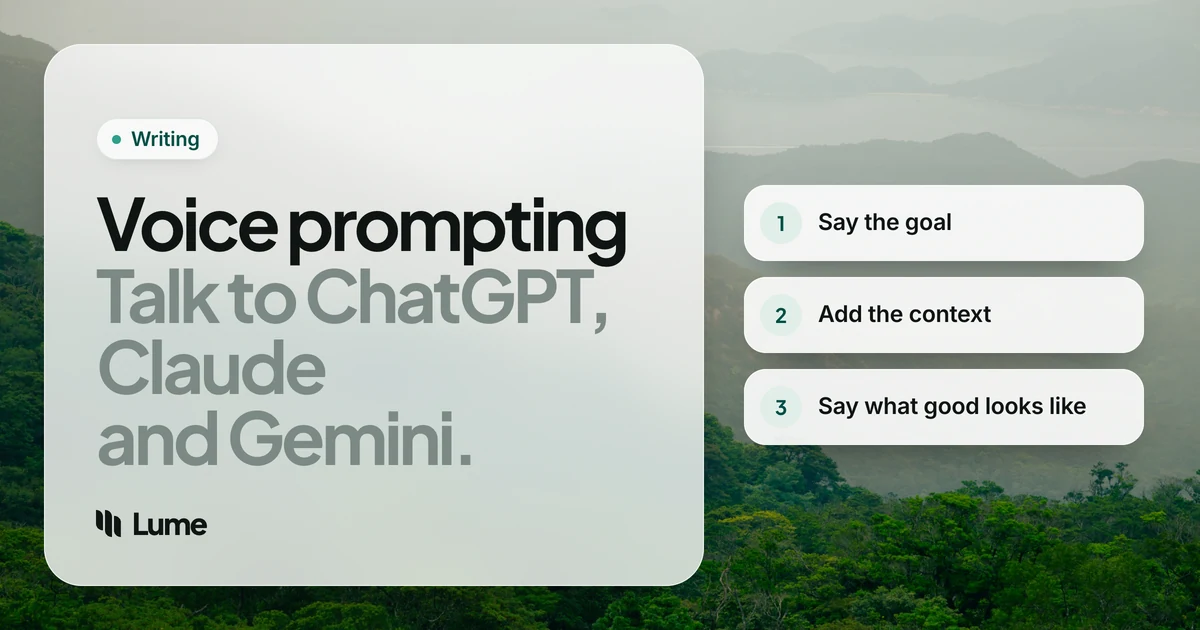
Say these four things, in roughly this order:
- The situation. Who you are, what you're working on, who it's for.
- The task. What you want the assistant to do, in one sentence.
- The constraints. Length, tone, format, what to avoid, what you've already tried.
- The finish line. What a good answer looks like, or what you'll do with it.
Then pause, read the prompt, and fix anything the recognition got wrong before sending.
Illustrative examples#
These are invented examples to show the difference, not real results.
Typed (illustrative): "Write a follow-up email to a client."
Dictated (illustrative): "I'm a freelance designer. I sent a client three logo concepts last Tuesday and haven't heard back. They're usually quick, so I don't want to sound pushy. Write a short follow-up email, four or five sentences, friendly but professional, that asks whether they've had a chance to look and offers a fifteen-minute call this week. Don't apologize for following up."
Typed (illustrative): "Explain this error."
Dictated (illustrative): "I'm getting a type error in a TypeScript React component when I pass an optional prop down to a child. I'm fairly new to TypeScript. Explain what the error means in plain words first, then show me two ways to fix it and tell me which one you'd pick and why. I'll paste the code below."
The dictated versions took seconds longer to say, and they give the assistant almost everything it needs.
Tips for better voice prompts#
Think for five seconds first. Know your task sentence before you start. The rest can come naturally.
Use spoken lists. Say "first... second... third..." for requirements. Many AI dictation apps turn spoken lists into numbered lists, which models follow well.
Paste, don't read. Don't read a long document or code aloud. Dictate your instructions and paste the material.
Correct yourself out loud. "Make it three paragraphs, actually two." Tools with self-correction keep only what you meant.
Fix names before you send. Speech recognition predicts words; product names and people's names are where it slips. A custom vocabulary helps on desktop.
Keep it private where it should be. A dictated prompt goes to the AI provider just like a typed one. Follow your employer's rules.
Voice prompting on your phone#
Phones are where voice prompting feels most natural, because typing a long prompt on a small keyboard is slow. Each assistant's app has its own microphone for dictation and its own voice mode, and your phone's keyboard has a dictation key too (iPhone, Gboard).
A few phone-specific habits help:
- Dictate in a draft first when the prompt matters, then paste it into the assistant. You can reread it away from the chat.
- Use voice mode for walks, and dictation once you're sitting down and want something precise.
- Check the transcript of any voice-mode chat before relying on what you or the assistant said.
Our best iPhone dictation apps and best Android dictation apps roundups compare the keyboards and apps that can do this.
Where this fits with agentic tools#
Voice prompting is also how many people now drive coding agents and AI tools that take actions. The dictation app writes the instruction; the agent does the work. If you're curious where that line sits, our explainer on agentic AI and voice dictation covers it, and speech to text vs AI writing explains why dictation keeps the words yours.
Where LumeVoice fits#
LumeVoice gives you one voice shortcut for every assistant and every other app. On a Mac, hold fn; on Windows, hold Ctrl + Win; talk and let go. A clean, punctuated prompt appears in the box of ChatGPT, Claude, Gemini, Perplexity, Cursor or a terminal, with filler words removed and lists formatted. On iPhone use the Lume keyboard; on Android, tap the floating bubble.
It only writes. It doesn't send the prompt, answer questions or read replies aloud; for a spoken conversation, the assistants' own voice modes are the right tool. It needs an internet connection, and your audio isn't stored after processing.
Say the whole prompt, not the short version
Hold a key, explain what you need, and get a clean prompt in ChatGPT, Claude, Gemini or any other app on Mac and Windows, with iPhone and Android on the same plan. Start with 3,000 free words, no card required.
The short version#
- Voice modes are for conversations; dictation is for prompts you want to read before sending.
- Speaking makes context cheap, and context makes answers better.
- Structure: situation, task, constraints, finish line.
- Paste long material, fix names, then send.